45-733 Probability and Statistics I (3rd Mini AY 1999-2000 Flex-Mode and Flex-Time)
Assignment #1
This assignment is intended to familarize you with using Excel and EVIEWS to
calculate simple descriptive statistics. You will be using Excel in many other
courses here at GSIA and you will be using EVIEWS in Prob-Stat II in Mini 4.
The assignment consists of 5 steps:
Go to the Excel Spreadsheet Download Page and follow the instructions
to download a spreadsheet.
 Excel Spreadsheet Download Page
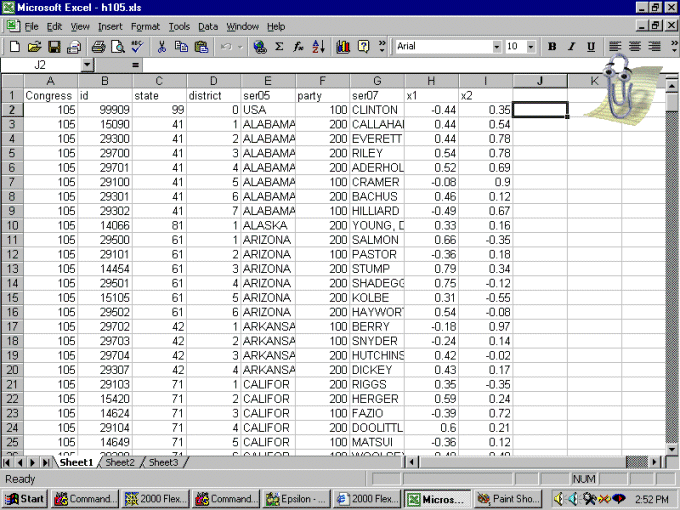
Bring the spreadsheet up in Excel. For example, here is what
H105.XLS looks like. Note that the first row contains the variable names (these
are the same for all the spreadsheets). The data begins with row 2.
Scroll down to the bottom of the spreadsheet and write down the last row
number. In the case of H105.XLS, the last row is 444 for a total of 443
observations (2,3,4, ... , 444). We will need this number for EVIEWS.
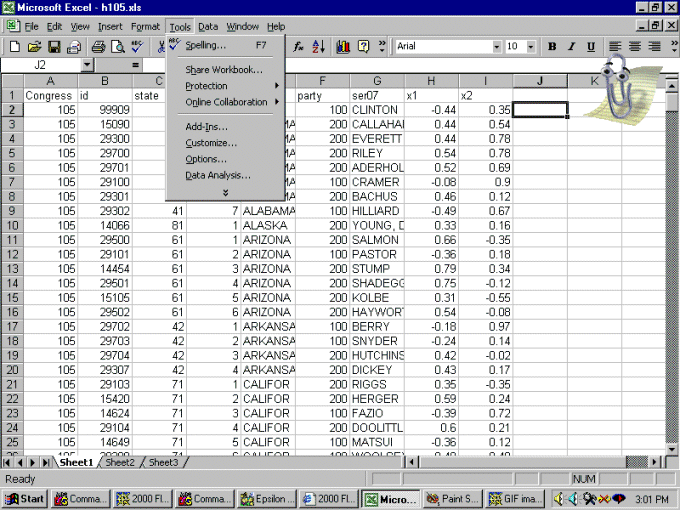
Go to the Tools menu and select "Data Analysis" (see below).
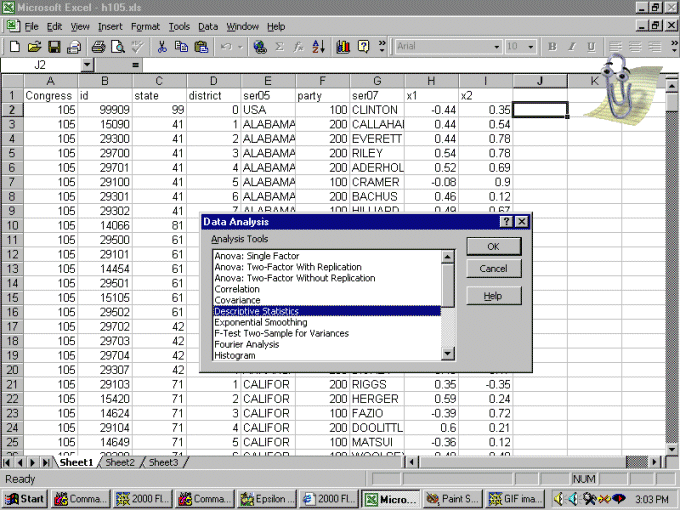
Under "Data Analysis" select "Descriptive Statistics" (see below).
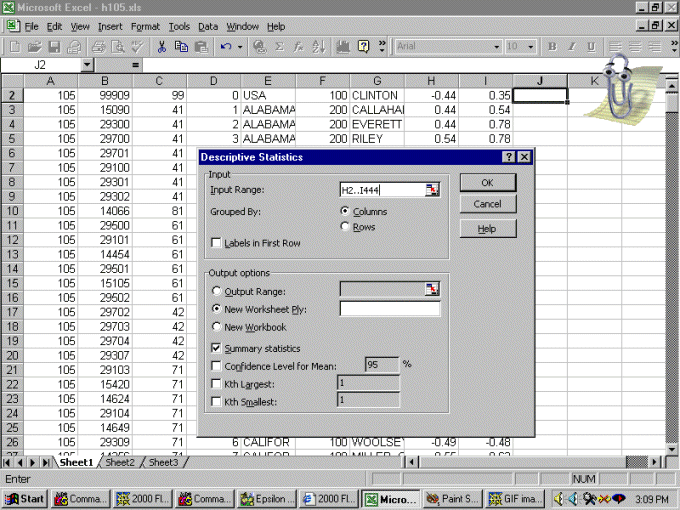
When you select "Descriptive Statistics" a Dialog box comes up (see below).
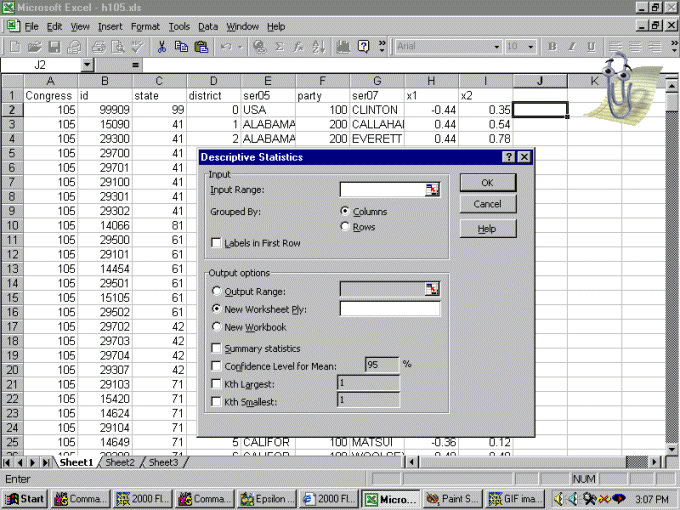
Fill in the entries as shown below. Note that the variable "X1" begins
at cell H2 so that when you select H2..I444 ("444" is specific to H105.XLS,
do not forget to use the last row number from your assigned spreadsheet)
you are asking for descriptive
statistics for both X1 and X2. Select "Summary Statistics" in the lower part
of the dialog box (see below).
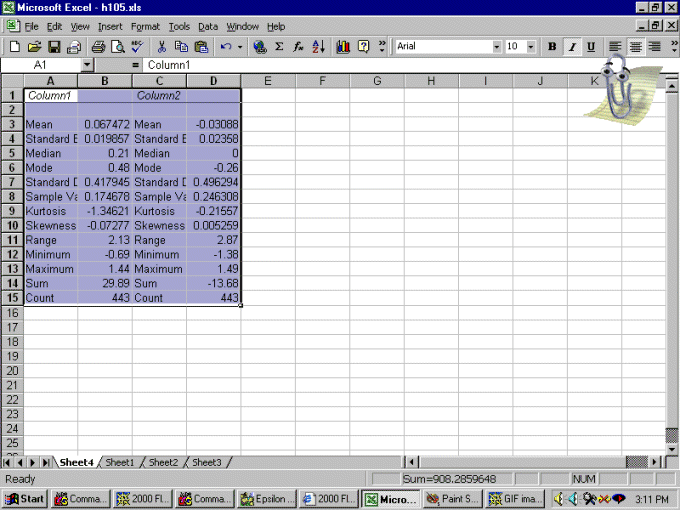
This is what the output looks like (see below).
Print this out and hand it in.
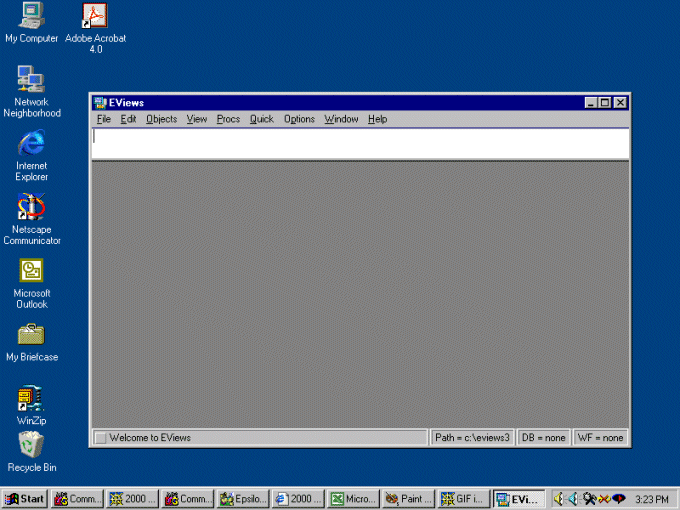
Now, bring up EVIEWS but leave Excel running. The initial
EVIEWS screen is shown below.
Type "Create" in the dialog box at the top (where the cursor is) and hit
Enter. The following screen will come up.
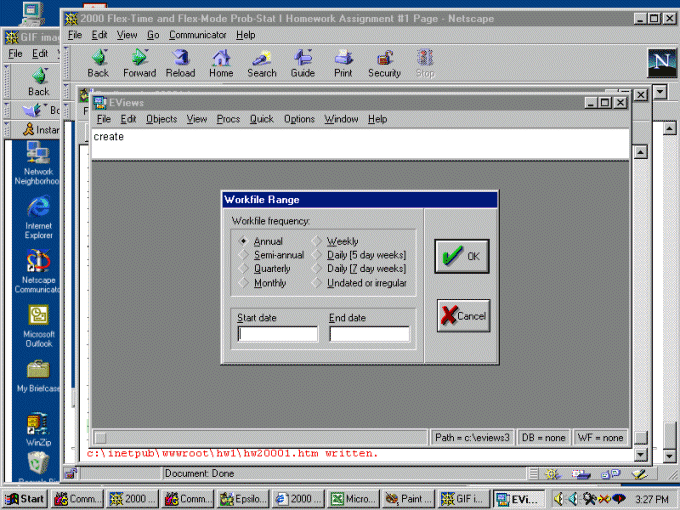
Now, select "Undated or Irregular" and put the total number of rows of data
in the box marked "End Observation" (see below).
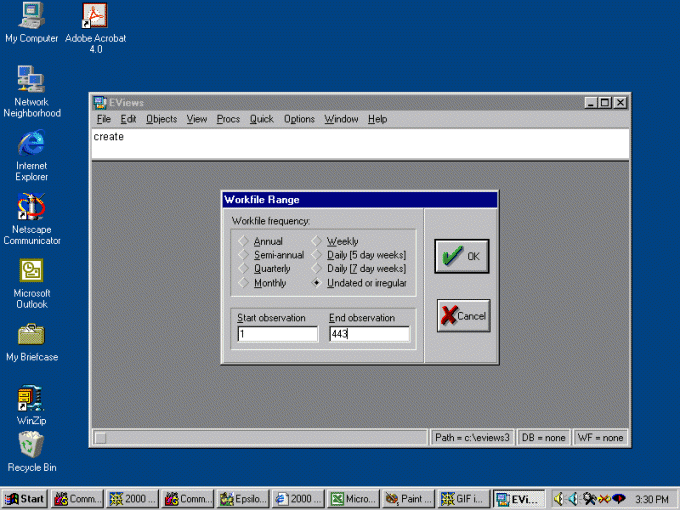
When you click "OK" the following screen will come up.
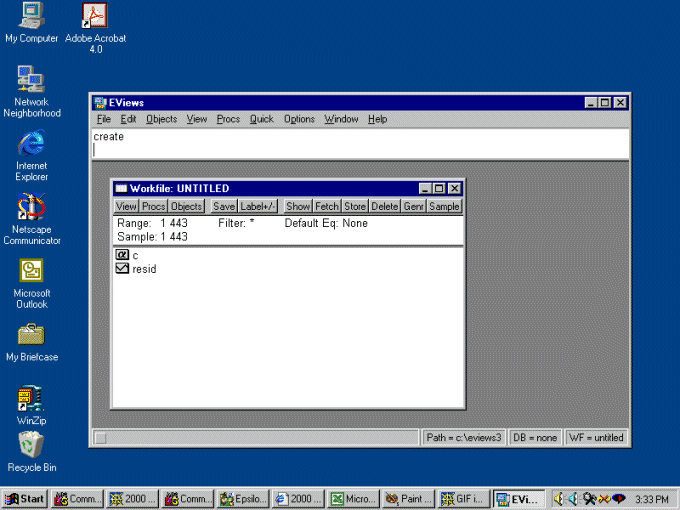
What you have just done is to create an EVIEWS workfile. Every workfile
always has the reserved names "C" and "RESID" listed. In Stat II you will
learn that the "C" is the intercept term of a linear regression and "RESID"
is the vector of residuals. Note that EVIEWS knows that the range of our
data is going to be 1,...,443.
Now we need to paste the Excel spreadsheet into EVIEWS.
Step one: In EVIEWS select "Quick" on the toolbar (see below)
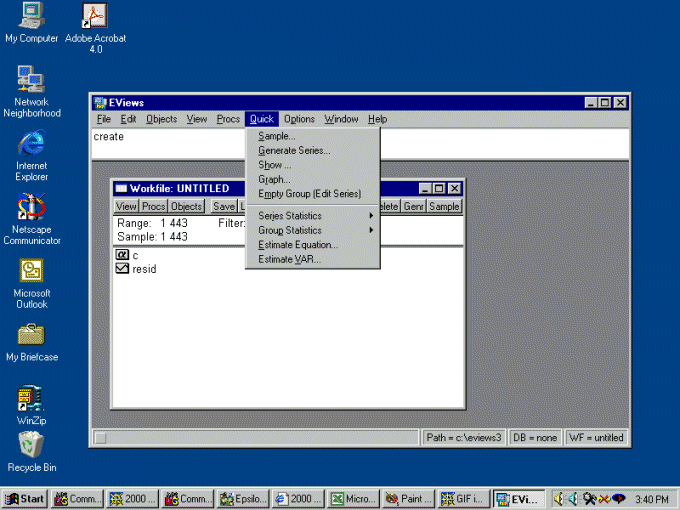
Step two: Select "Empty Group (Edit Series)" and the following
screen will come up.
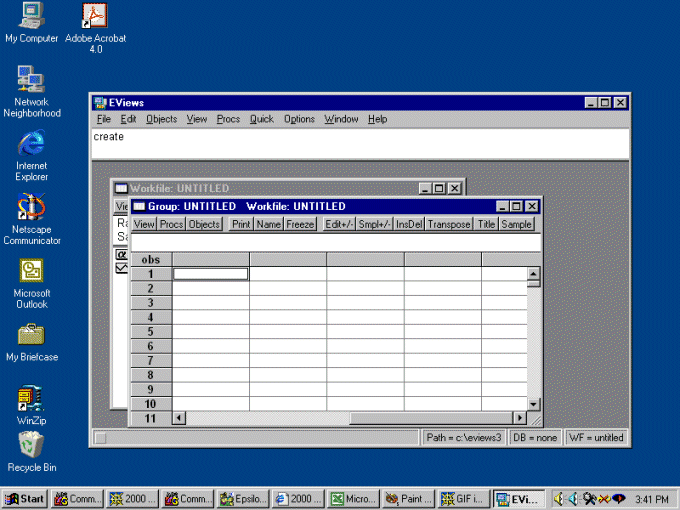
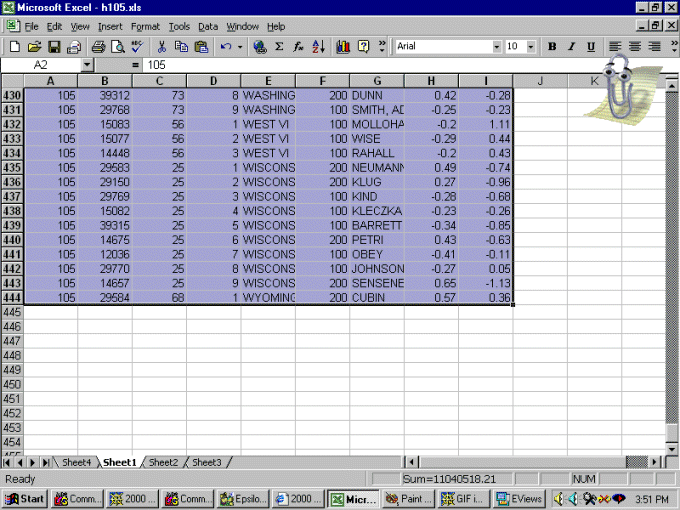
Step three: Leave EVIEWS running and go back into Excel. Copy the
spreadsheet data onto the clipboard -- that is, highlight rows 2 to 444 and
copy into the clipboard (we will copy the variable names in row 1 later -- see
below).
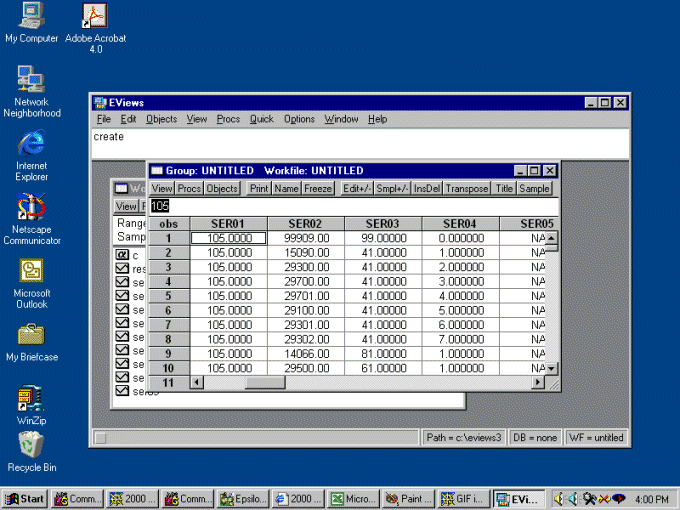
Step four: Under "Edit" in EVIEWS select "Paste" and paste the
spreadsheet into EVIEWS. It should look like this:
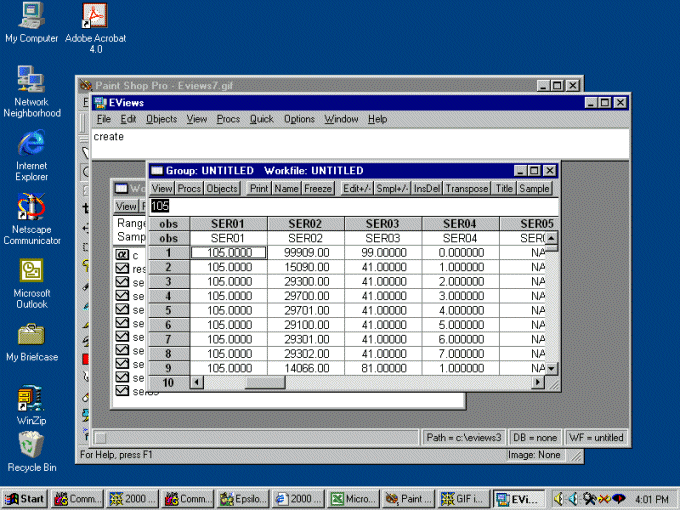
Step five: Click the up arrow on the right (under where it says
"SER05") and you should see the following.
Step six: Click on "SER01" and go back into Excel. In Excel, highlight
and copy the first row of the spreadsheet -- the variable names -- onto the
clipboard and go back into EVIEWS.
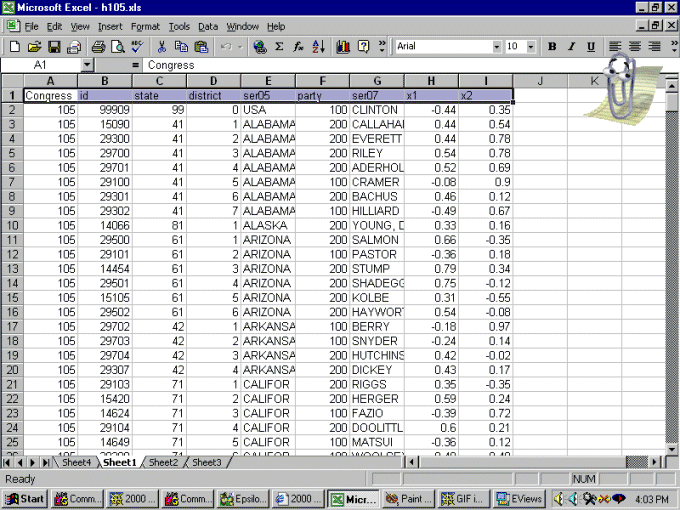
Step seven: Paste the variable names where you clicked on "SERO1".
EVIEWS will ask you for each variable name if you want to change the name from
its defaults (SER01, SER02, etc) into those we have in our spreadsheet. Note
that we are using SER05 and SER07 so do not get confused. Just click "OK"
until its done. The final result should look like the following.
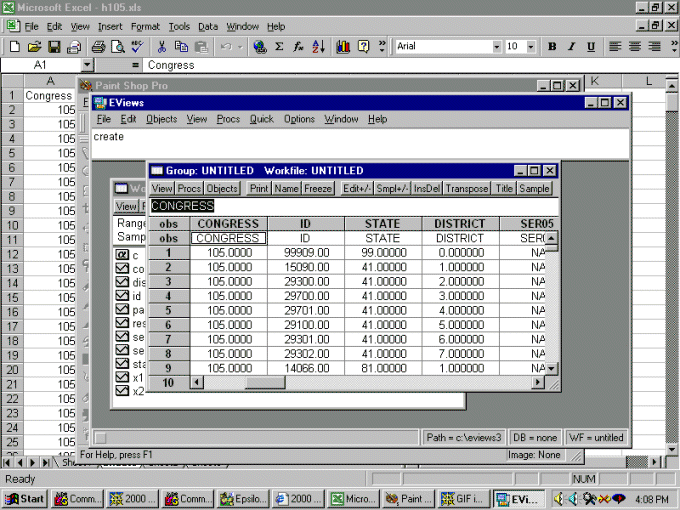
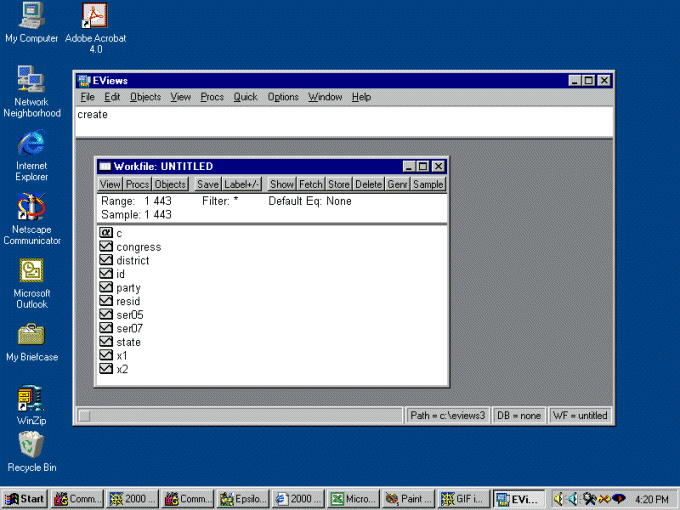
Step eight: Close "Group: Untitled Workfile: Untitled" and you will
see the basic screen of EVIEWS. Note that our variable names now appear along
with "C" and "Resid".
Step nine: It is now time to name our workfile. Click the "Save"
button on the Workfile Toolbar and the following dialog box comes up.
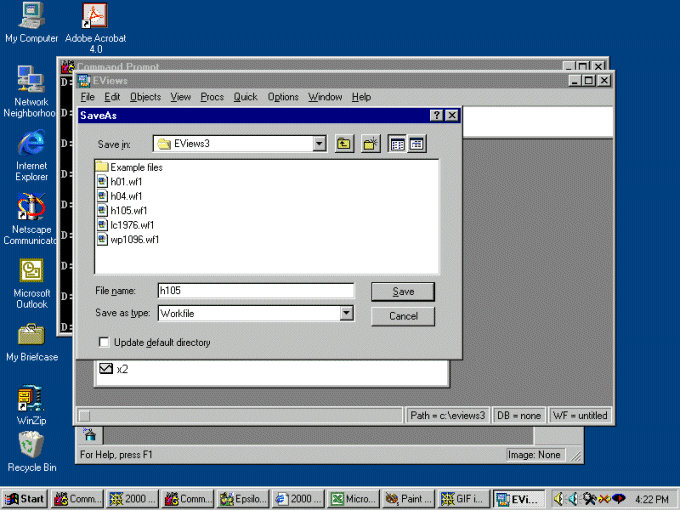
Step ten: Enter the filename corresponding to the Excel Spreadsheet.
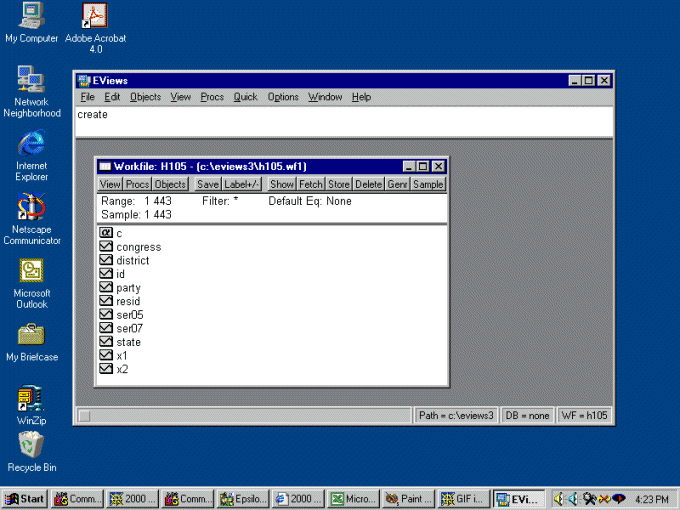
In this case the spreadsheet is H105.XLS so we enter "H105" and click "Save".
We now have our workfile in EVIEWS (see below).
We are now ready to compute descriptive statistics in EVIEWS. In
EVIEWS, select "Quick" and under "Quick" select "Series Statistics". Under
"Series Statistics" select "Histogram and Stats".
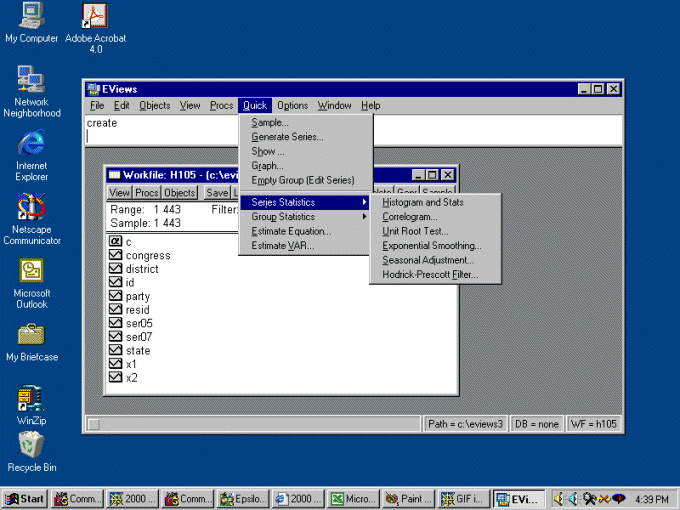
A dialog box will appear. Enter "X1" and click "OK" (see below).
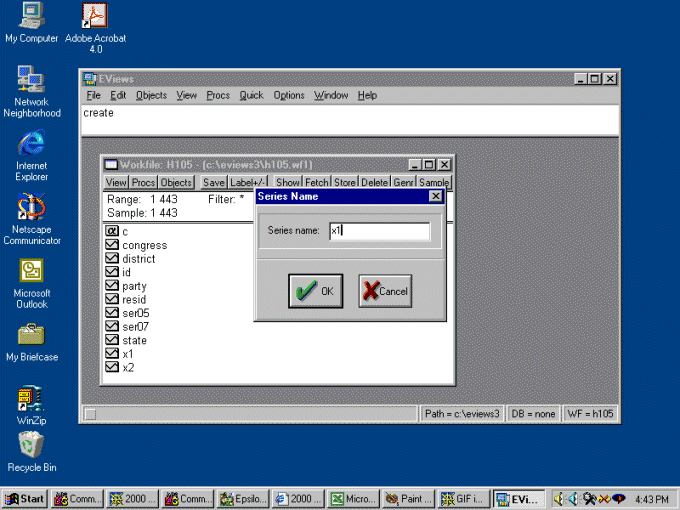
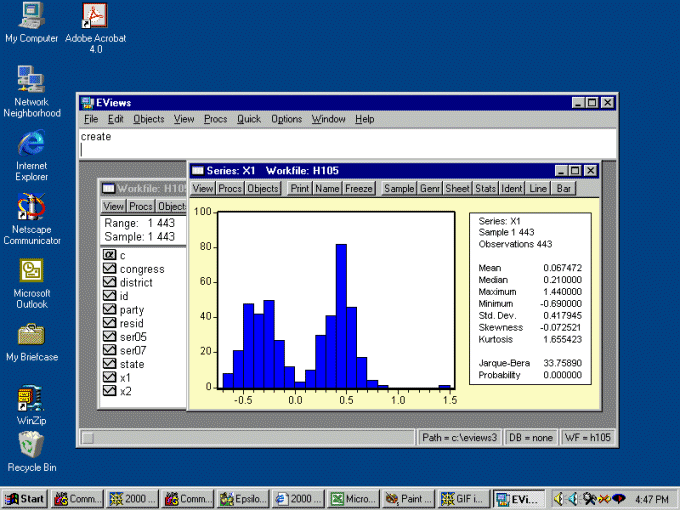
The following should now appear on your screen. Click the "Print" button on
the series tool bar and turn in the printout. Repeat this process for variable
"X2" and turn in that printout.
SUMMARY of Homework Assignment
Turn in the following on 25 January 2000:
The "Descriptive Statistics" printout from Excel for variables "X1"
and "X2".
The "Histogram and Stats" printouts from EVIEWS for variables "X1"
and "X2".