 105th Congressional District Data (HDMG105X.DTA)
105th House DW-NOMINATE Scores (H105.TXT)
105th Congressional District Data (HDMG105X.DTA)
105th House DW-NOMINATE Scores (H105.TXT)We are going to use Epsilon to paste H105.TXT into Stata.
-
Start Epsilon and open H105.TXT.
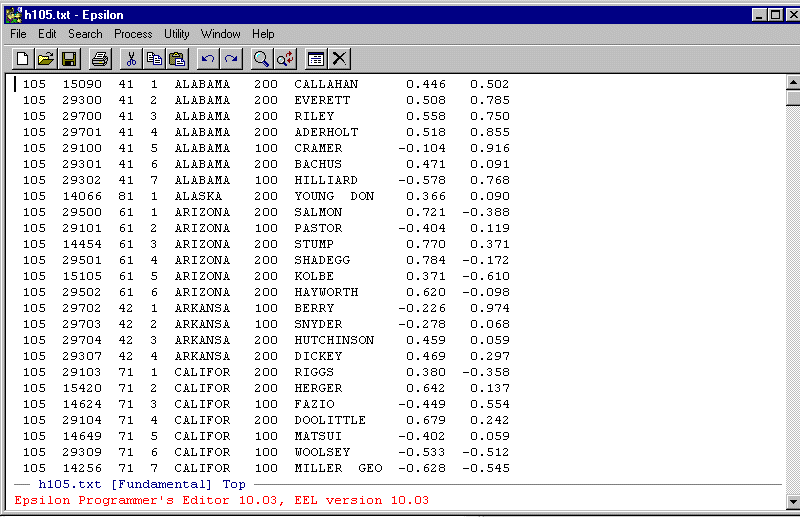
You should see something that looks like this:
In order to paste H105.TXT into Stata we need to put commas after every variable. To do this we need to write a simple Epsilon macro. To begin, type:
C-X ( -- This means "Control-X" then "("
You will see:
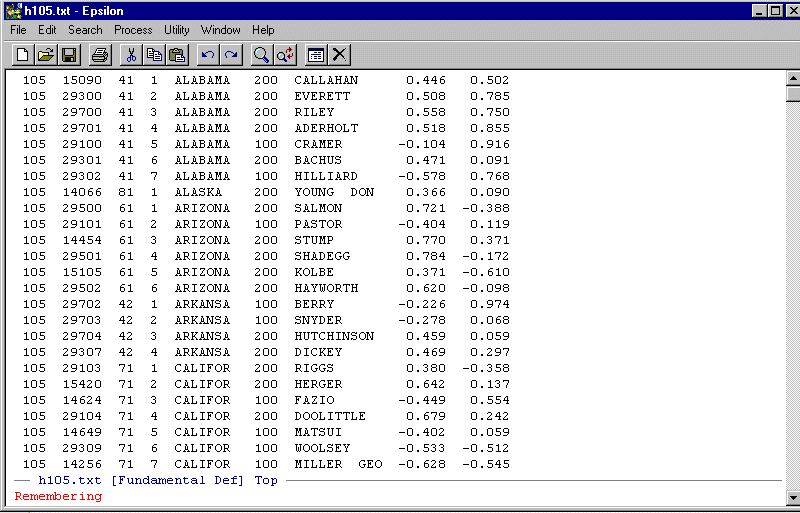
Note the Remembering. Epsilon now records all the key-strokes that you enter until you give the command C-X ).
Using the arrow keys, space over to just to the right of the first column in the first row (i.e., just to the right of 105) and type ",". Keep using the arrow key to space over to just to the right of the second column in the first row (i.e., just to the right of 15090) and type ",". Do this for every column except the last column -- that is, do not put a comma at the end of the line. Also note that in the member name column you want to put the comma over fairly close to the column of numbers.
Now type C-A -- "Control-A", this puts the cursor at the beginning of the line.
Use the down arrow key once so that the cursor is at the beginning of the second line (Note that C-N does the same thing as the down arrow -- this is the equivalent command in EMACS.)
Now close the macro: C-X )
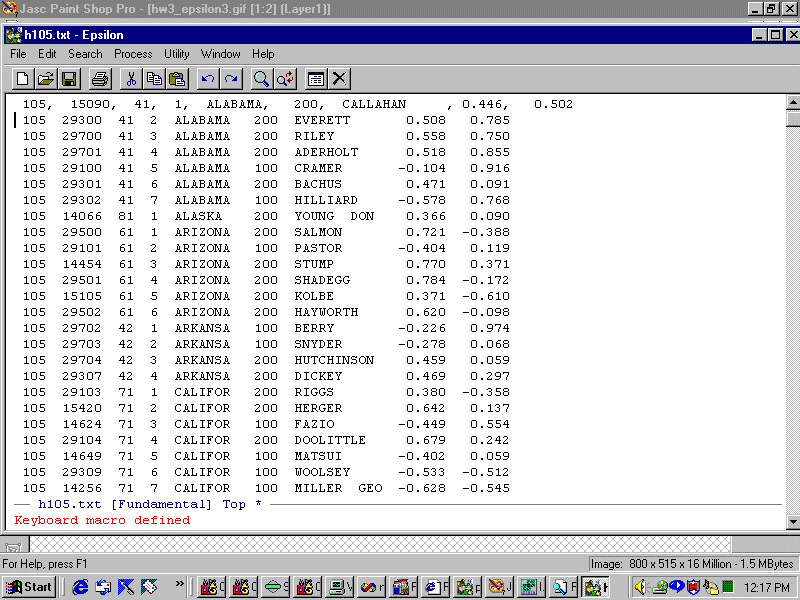
You should see:
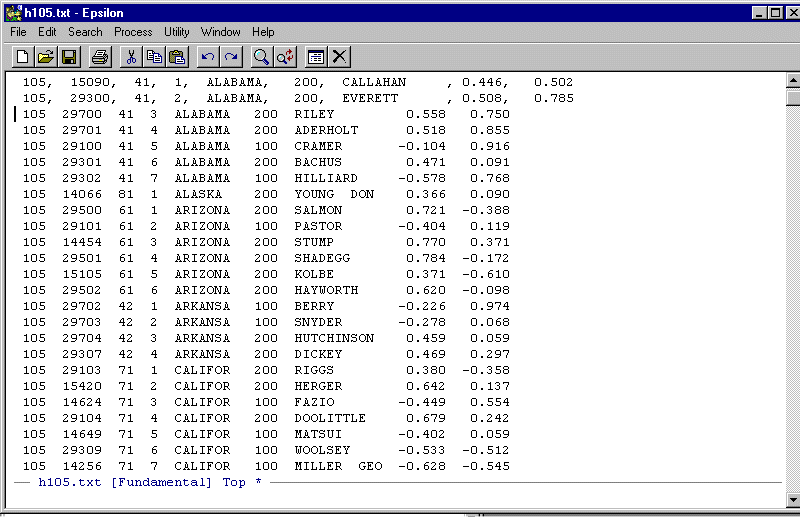
To execute the macro one time type C-X E. You should see:
Before executing the macro multiple times you need to check how many lines there are in the file. To do this type C-X L. You should see:
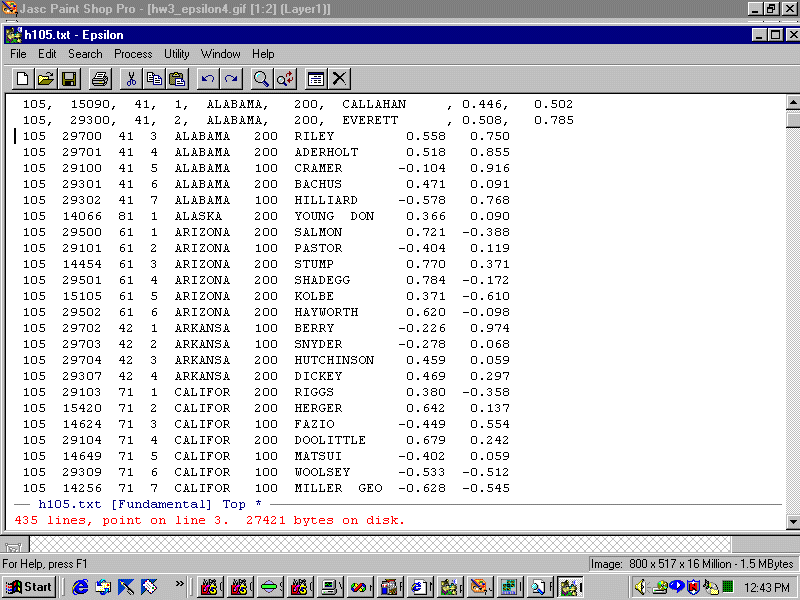
Epsilon tells you that there are 435 lines and the cursor is on line 3. We need to run the macro 433 times but lets execute it only 430 times just to be on the safe side (this is good practice!). To do this type:
C-U -- Control-U. You should see:
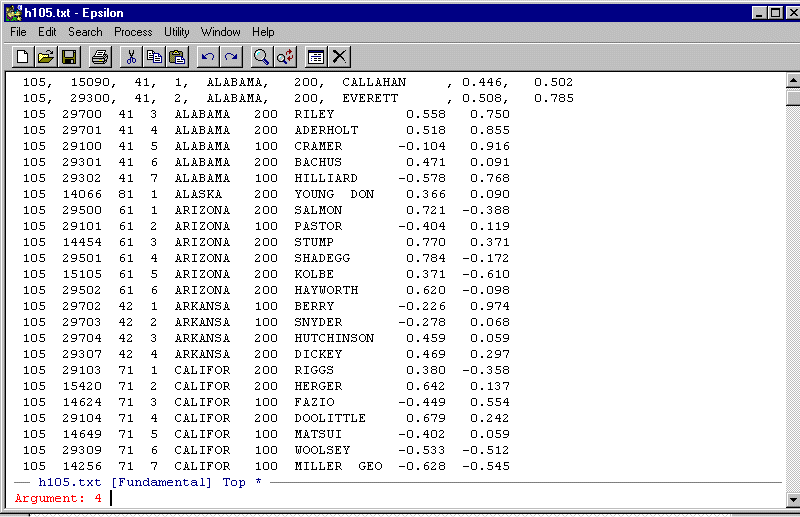
The C-U function will cause whatever command you enter next to be repeated. The "4" is a default. Simply type:
430 C-X E
You should see:
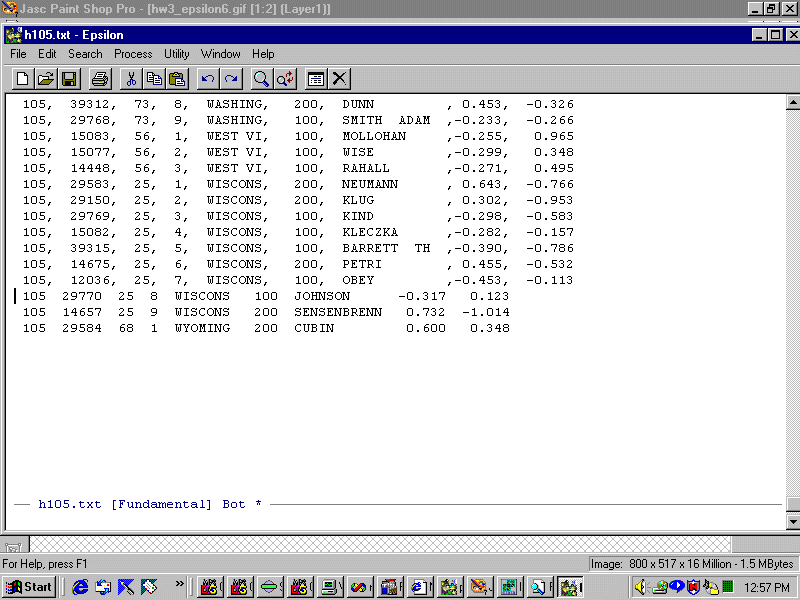
Now just do C-X E three more times or C-U 3 C-X E and you will see:
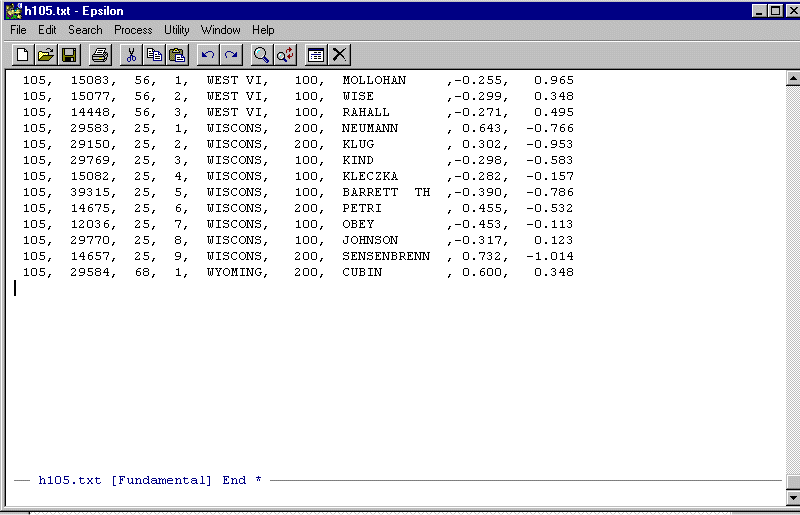
Note the "*" to the right of "End". This tells you that the file has been modified and has not been saved to disk. Now save it to disk. The "*" disappears and you are finished. Leave Epsilon running and....
Start STATA, turn on the log file function, and open the data editor spreadsheet. We are now going to paste our transformed H105.TXT file from Epsilon into Stata. To do this, go back to Epsilon, highlight the whole file and put it on the clipboard. There are two ways to do this. The easiest method is to first position the cursor at the top of the file. To do this, type:
ESC < (Type Escape then type <)
This positions the cursor at the beginning of the file. You should see:
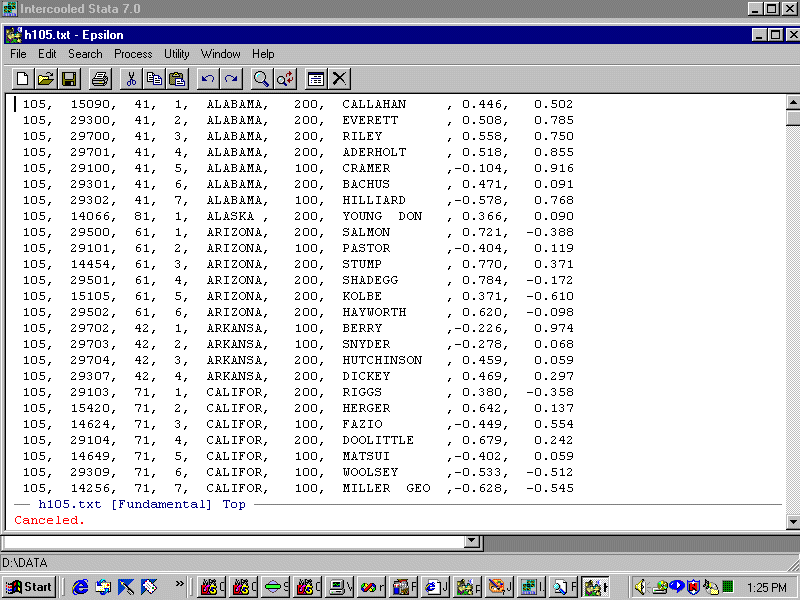
Now, to quickly highlight the whole file type:
C-@ (Control-@)
And you will see:
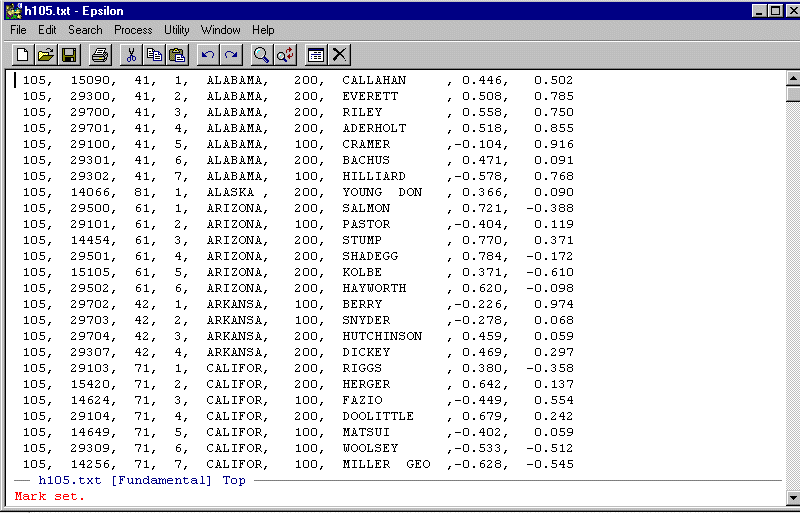
Note the Mark Set. Now type:
ESC > (Type Escape then type >)
This positions the cursor at the end of the file and since you set a mark, Epsilon will highlight everything from the Mark Set to the end of the file. You should see:
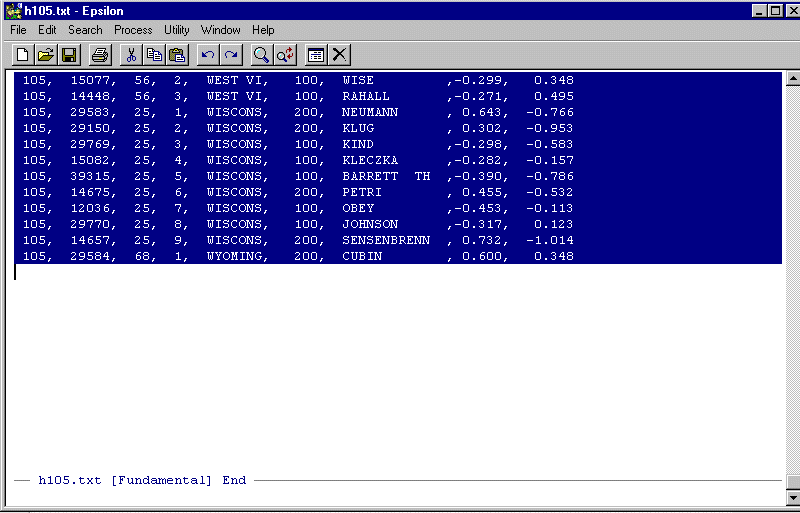
Now, place the highlighted area on the clipboard and paste it into Stata. You should see:
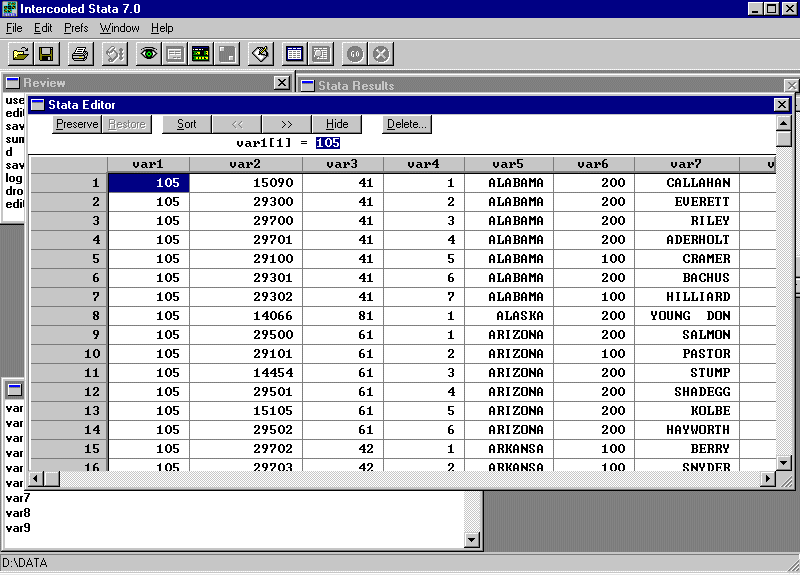
Many of these variables are already in HDMG105X.DTA so we can delete them. In particular, we only need var8 and var9 -- the two DW-NOMINATE variables. However, in order to merge this file into HDMG105X.DTA we need to retain var3 and var4 -- the state and congressional district codes, respectively. We will also retain var7 -- the member name -- as a check on our merge. To delete a variable, click on the variable name and then click the "delete" key in the Stata Editor window. A dialog box will appear and you should see:
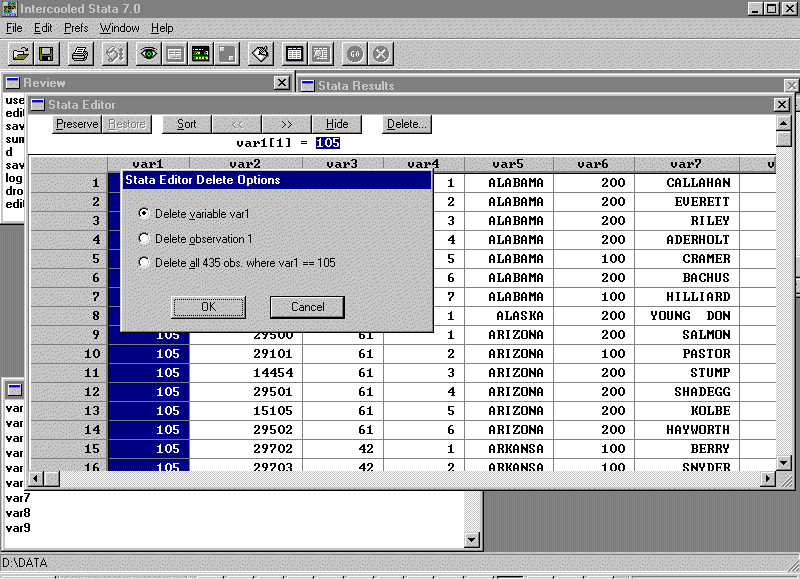
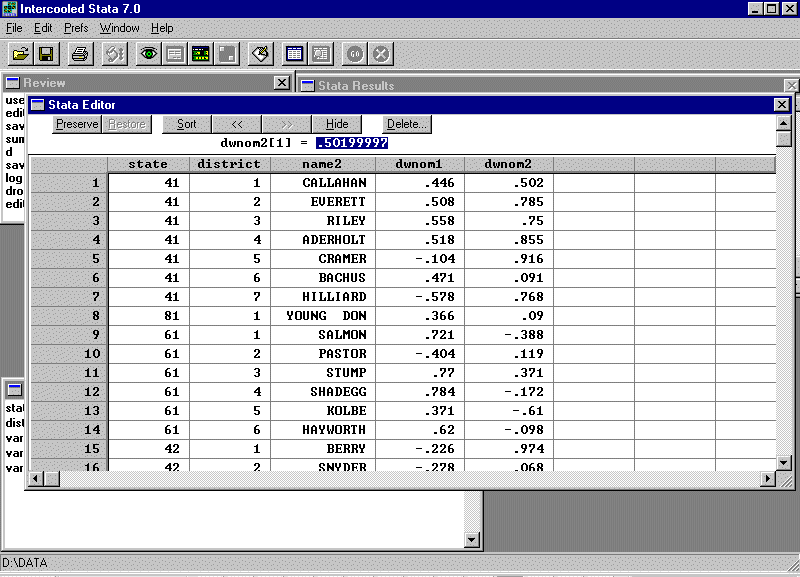
Click "OK" and the variable is deleted. Delete the other variables and then name var3 as state, var4 as district, var7 as name2, var8 as dwnom1, and var9 as dwnom2 (don't forget to put in the appropriate labels). The data editor should look like this:
In the "Stata Command" window type:
sort state district
and save the file as Scrap.dta (or any name that you prefer).
Now enter the following commands:
drop _all (this unloads Scrap.dta from Stata)
use "D:\statadat\hdmg105x.dta", clear (this loads hdmg105x.dta into Stata -- put in your local path statment!)
sort state district (this sorts hdmg105x.dta in the same order as scrap.dta
merge state district using d:\statadat\scrap.dta (this command merges scrap.dta into hdmg105x.dta)
Open the data editor and note that the variables from scrap.dta are added onto the end of the file. You should see this:
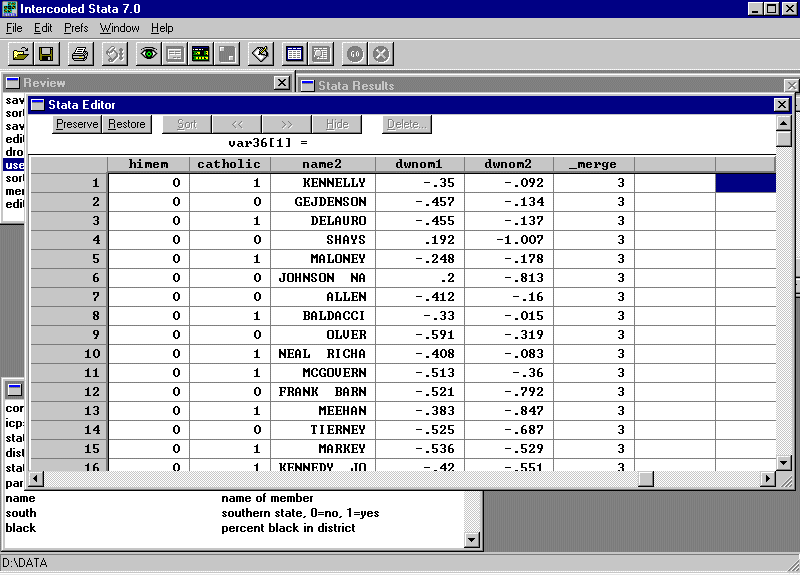
Note that state and district are not duplicated!
Do the d and summ commands and paste the results into your homework answer. Note that in the results from the summ command all 435 values of _merge should be 3!
Run the following regression:
regress clint96 black south hisp income rep
Interpret the results in light of your knowledge of American politics. What should the signs be on the coefficients? Why?
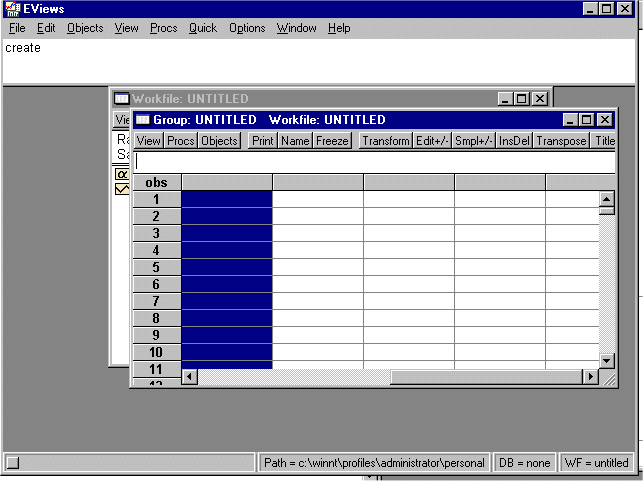
Now, bring up the Stata Editor and highlight the entire sheet (you can leave out _merge). You should see:
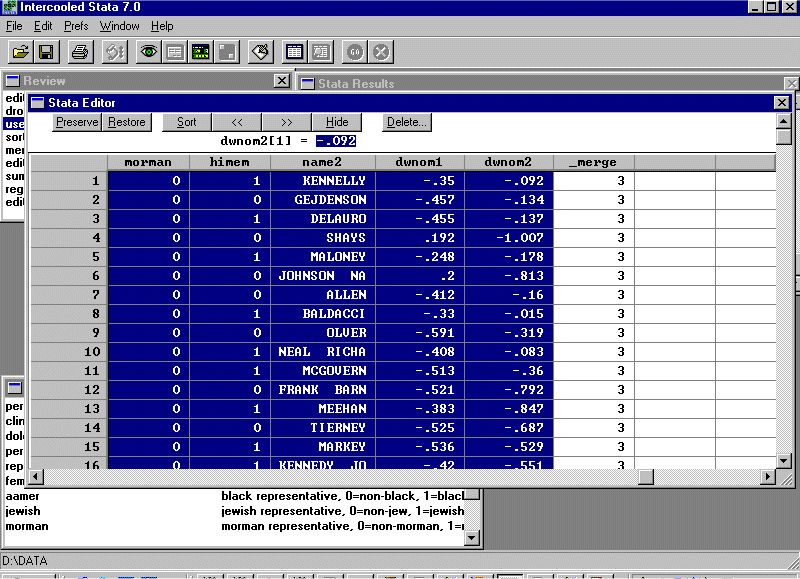
Put the spreadsheet on the clipboard and go back into EVIEWS and paste the spreadsheet into EVIEWS. You should see:
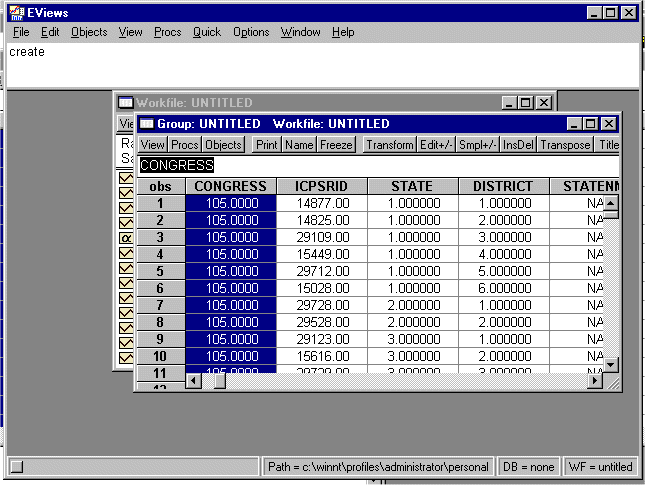
Exit the spreadsheet and save the workfile as HDMG105X.WF1.
Replicate the regression you ran in Stata in EVIEWS.