Bayes by the Beach -- How to Use
WINBUGS on Gary King's U.K. Elections Data
WINBUGS is not user friendly! Accordingly, I will go through the
U.K. Elections data application step-by-step. First and overview and then step by step
screen shots. Overview:
 1. Model ® Specification ®
 2.                              double-click "model"
                                 in Document Window
 3.                                                   ® Check Model
 4.                              double-click "list"
                                 under "data' in
                                 Document Window
 5.                                                   ® Load Data
 6.                                                   ® Compile
 7.                              double-click "list"
                                 under "inits" in
                                 Document Window
 8.                                                   ® Load Inits
 9. Inference ® Samples ® type "rho" ® set
10. Inference ® Samples ® type "bias" ® set
11. Inference ® Samples ® type "rho" ® trace
12. Inference ® Samples ® type "bias" ® trace
13. Model ® Update ® type number in box ® update
14. [Bring "Sample Monitoring Tool" to front] ® select "rho" ® stats
15.                                           ® select "bias" ® stats
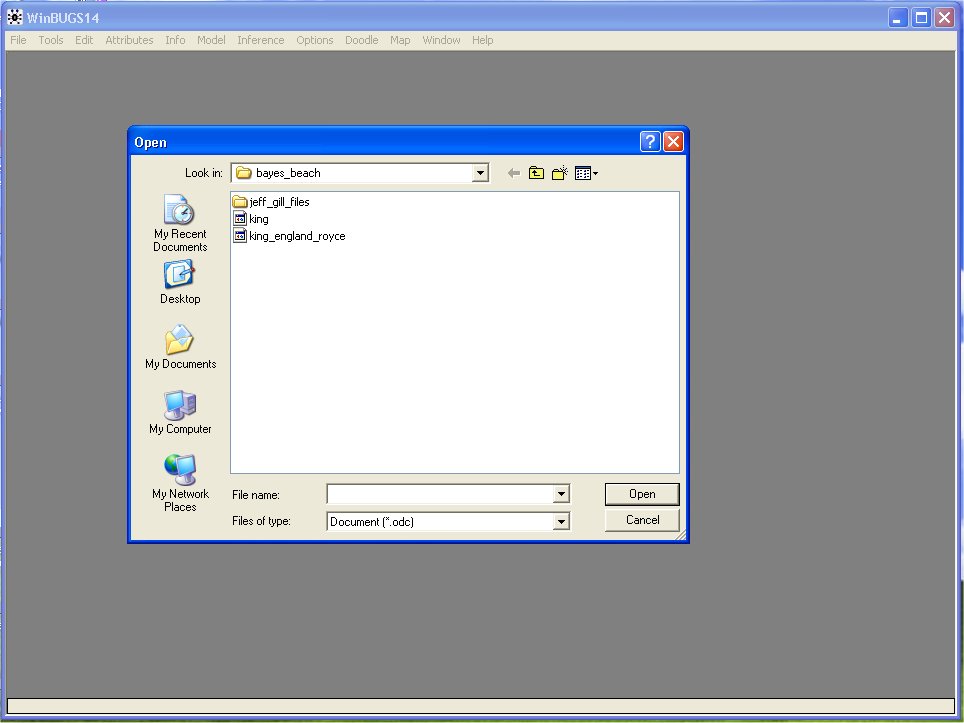
- After starting WINBUGS use the normal Windows file-open drop-down
to grab the king_england_royce.odc document (actually, it is a binary file) file:
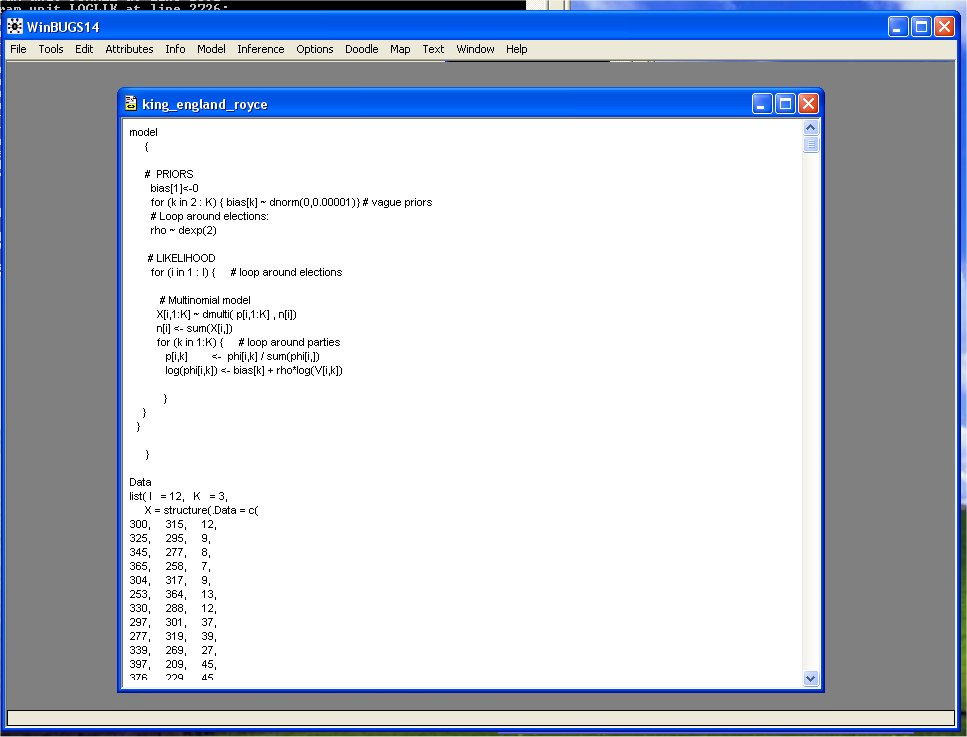
- This is what you see after king_england_royce.odc loads. The file contains the
model, the data, and the intial values.
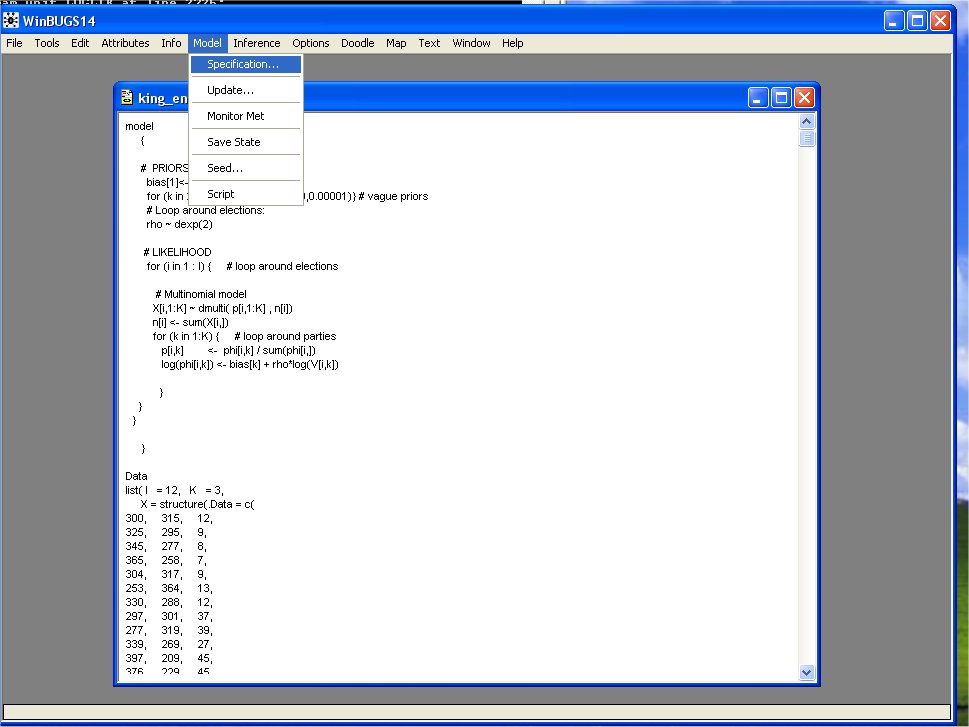
- The first step is to select "Specification" from the drop-down "Model" Menu:
- The "Specification Tool" dialog box appears. This is used to check the model.
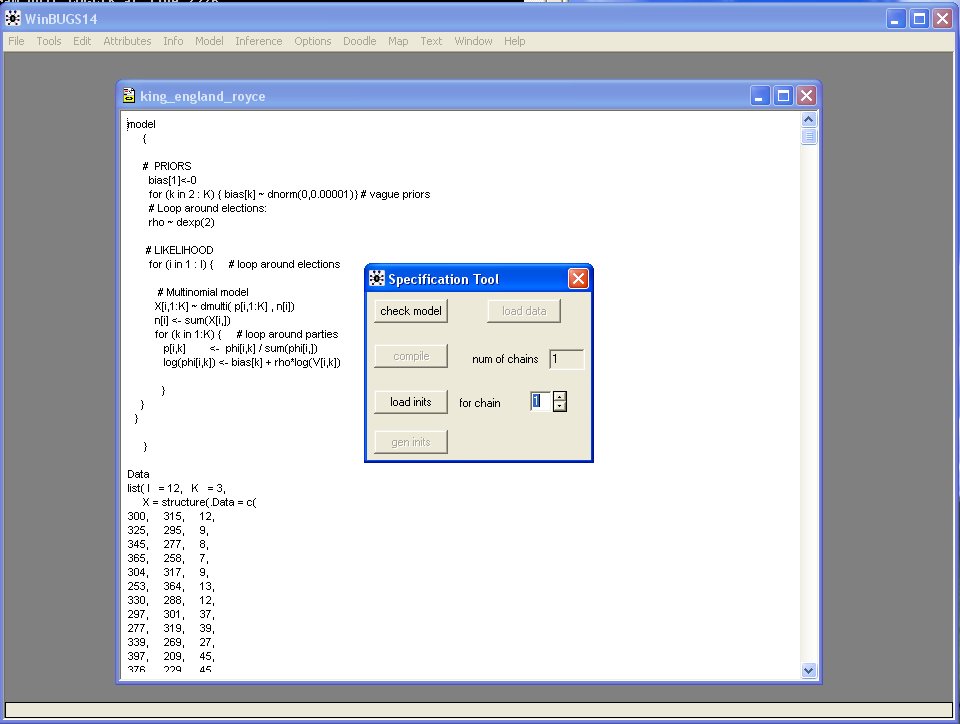
- Double-Click on "model" in king_england_royce.odc and it highlights the word:
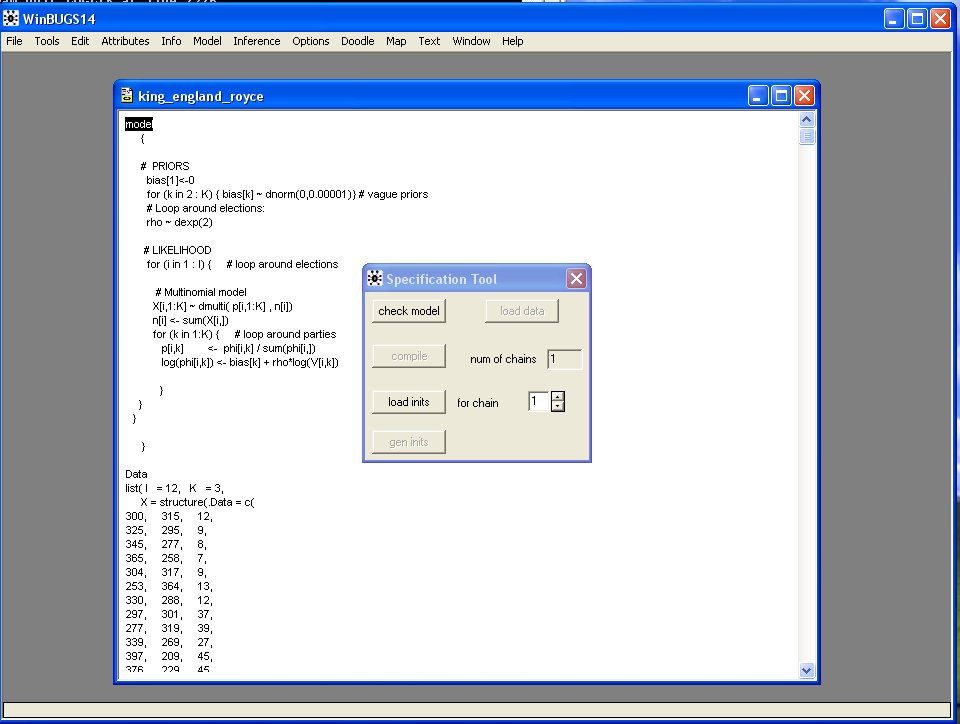
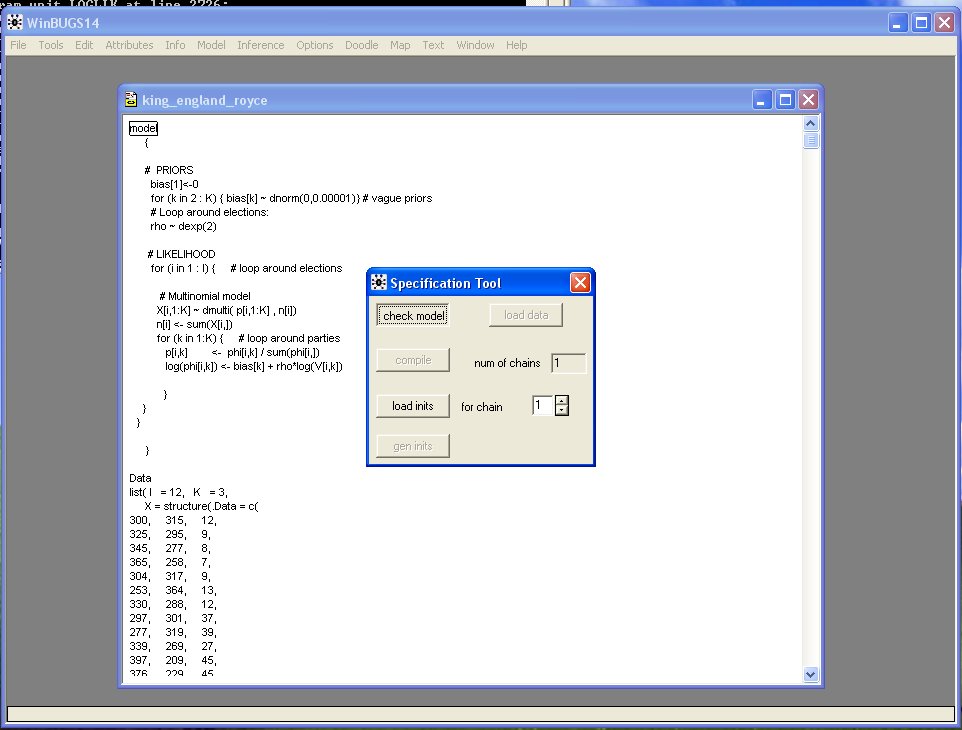
- Click the "check model" button to check the model:
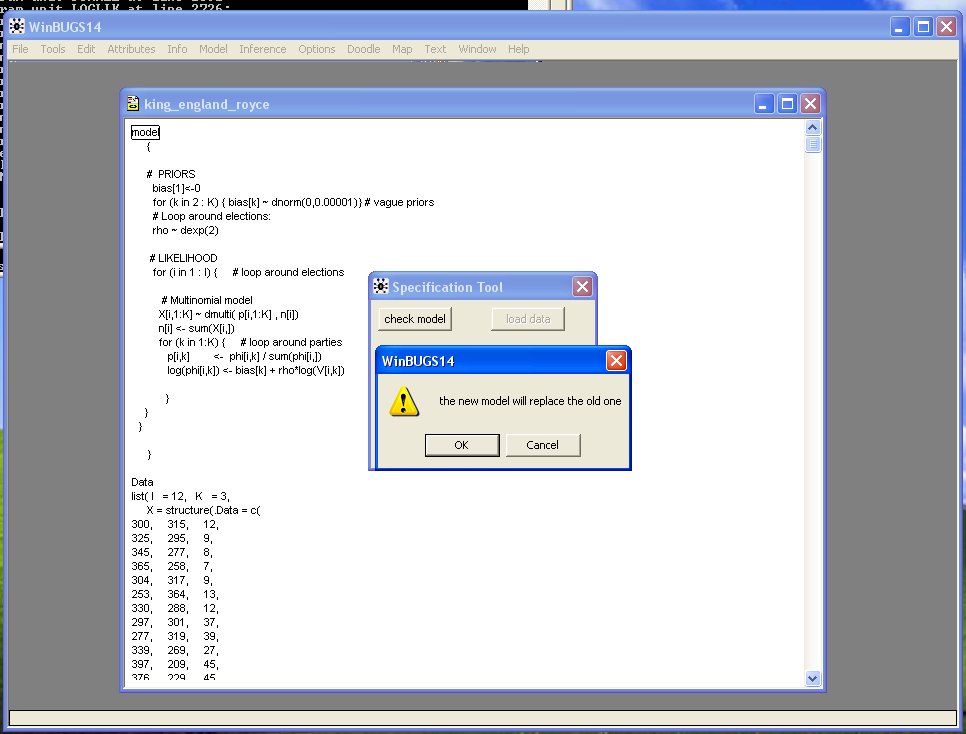
- Because the model is OK (this may not always be true!) a dialog box pops up telling you
that it will replace the old model. Click OK.
- Double-Click on "list" below the word "data" to load the data:
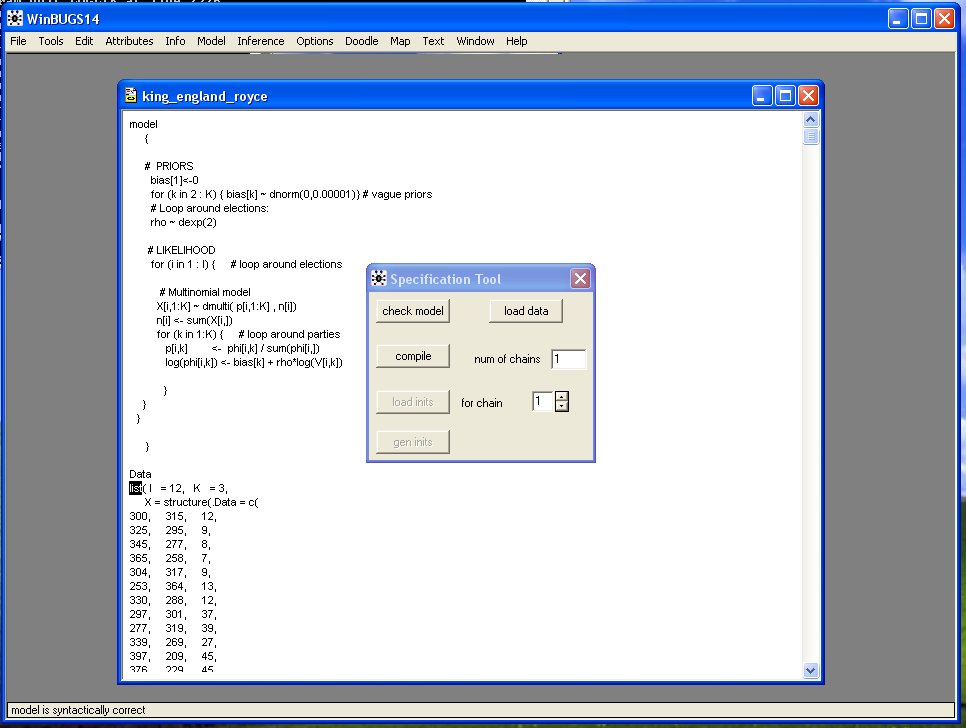
- Click "load data" to load the data into the program.
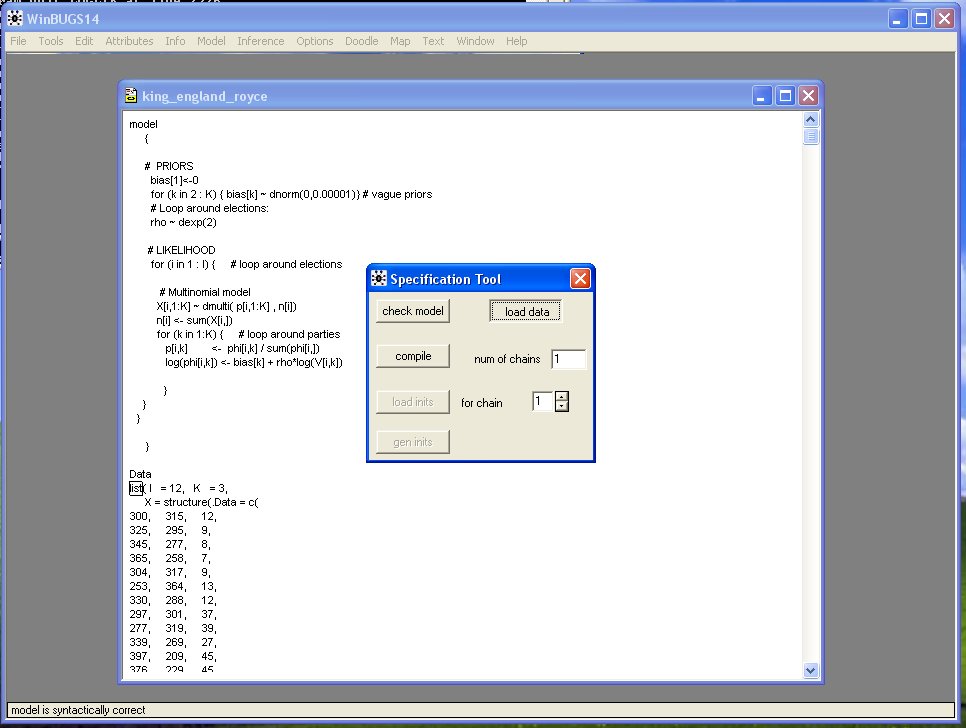
- Click "compile" to make the program ready to run.
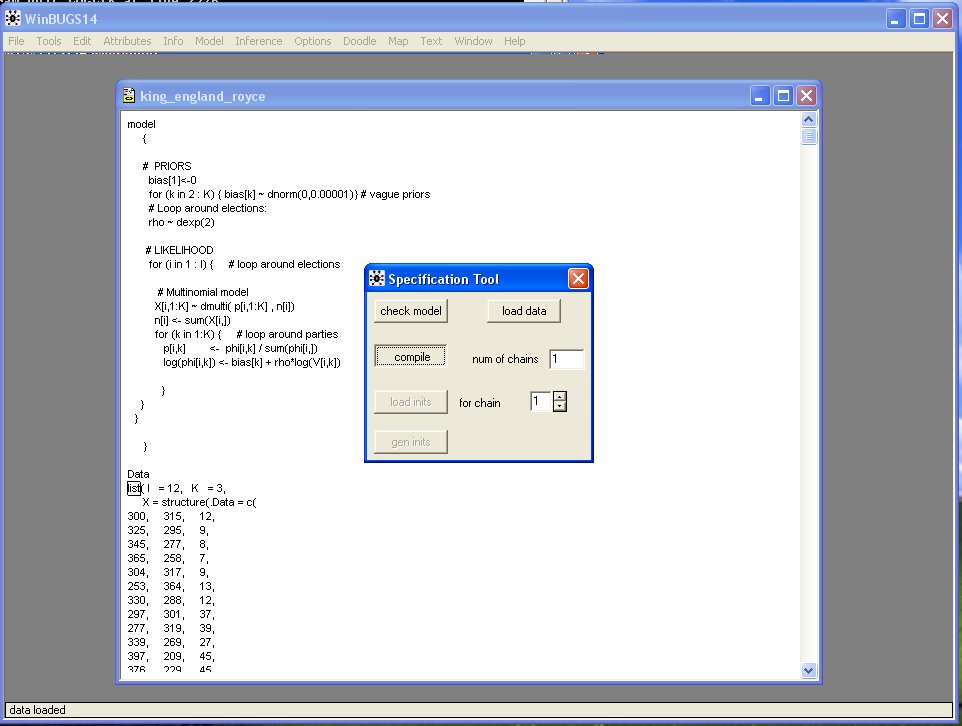
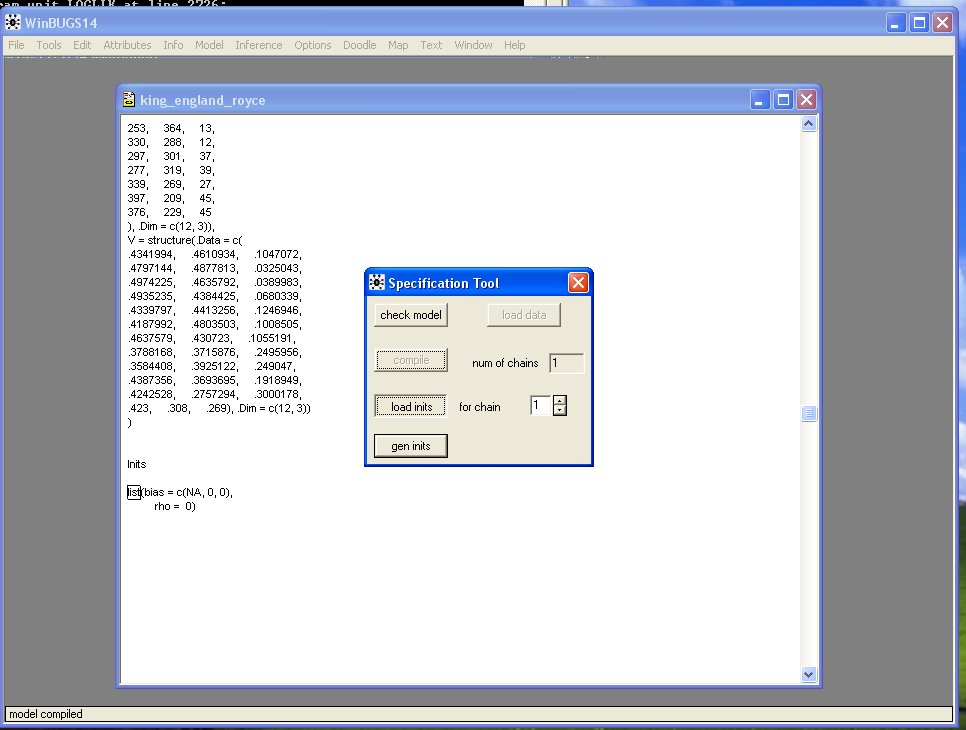
- Double-Click on "list" below the word "Inits" to load the intial values:
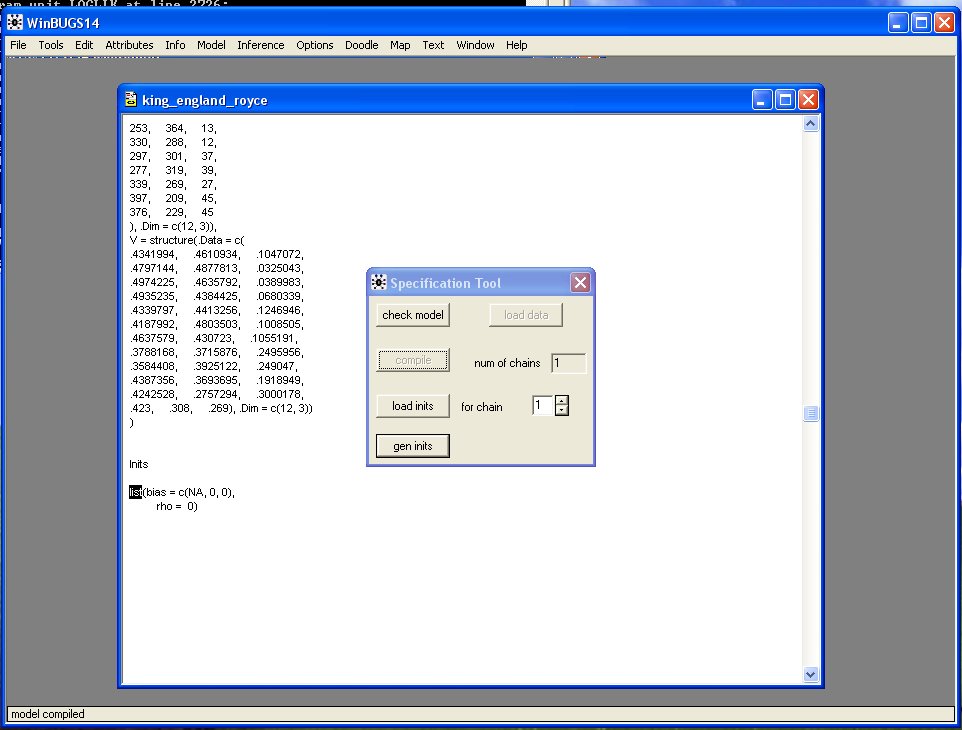
- Click "load inits".
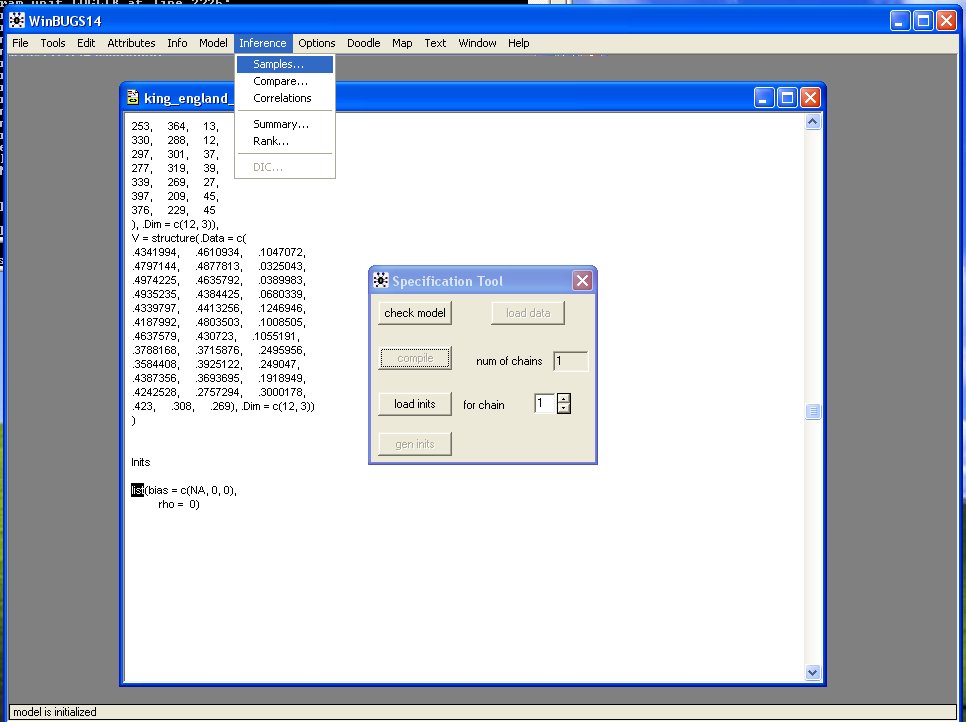
- Now you have to set up your sample monitoring. Click the "Inferences" drop-down box
and select "Samples":
- This brings up the Sample Monitoring Tool:
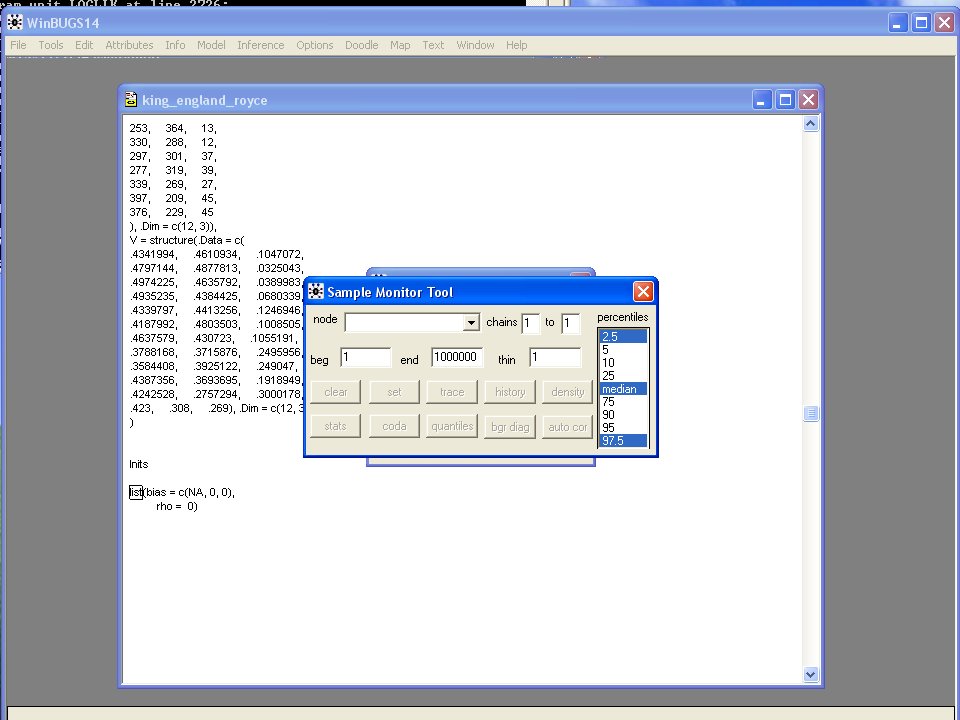
- The parameters are rho, and the 3-length vector bias.
(One value of bias is held constant.)
In the "node" window type "rho" and then click set:
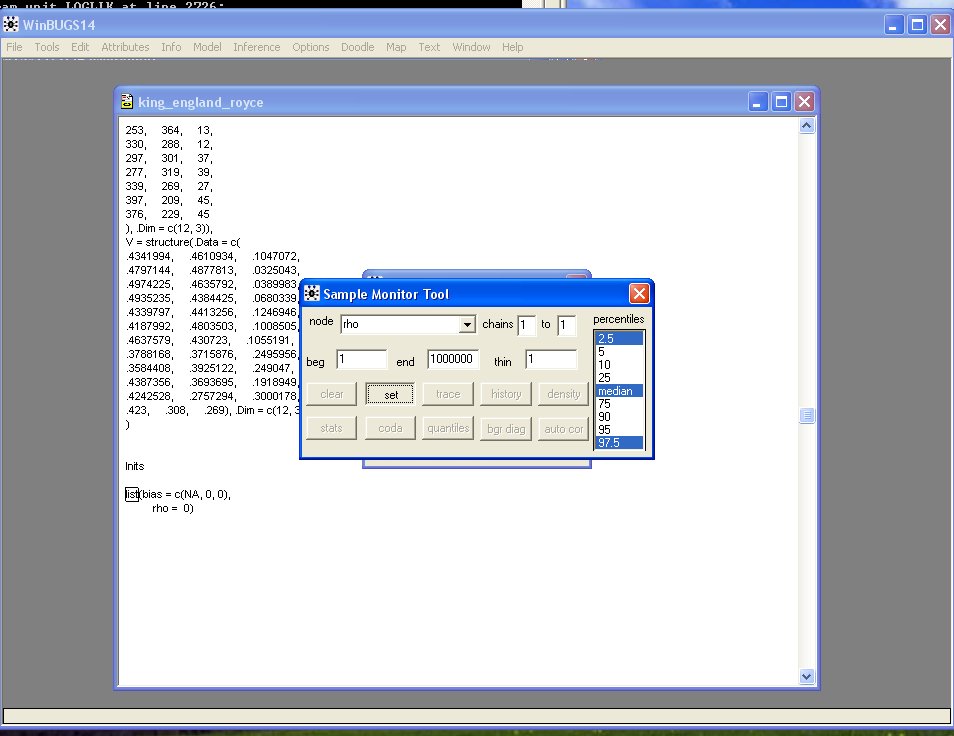
- Now type "bias" and click "set:
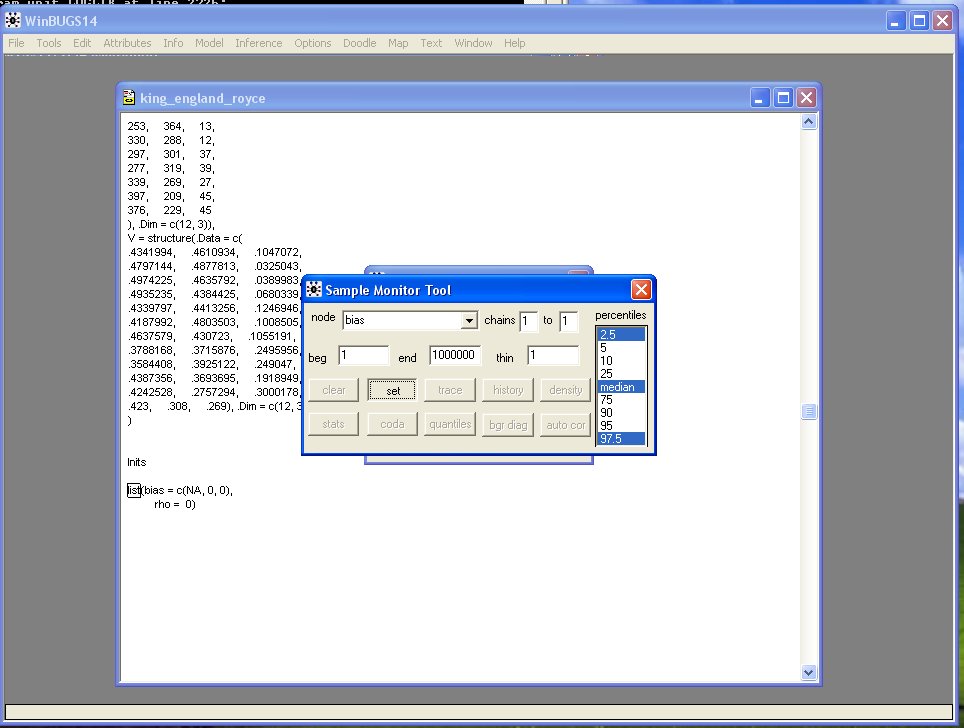
- Go back and select "rho"
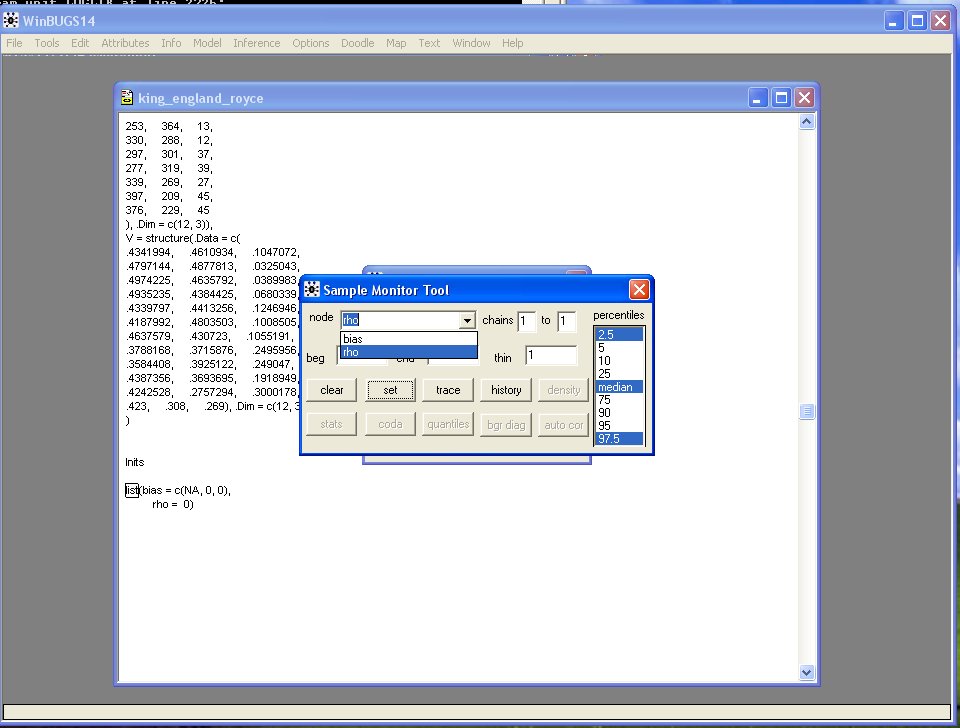
- and click "trace". This brings up a window that will show the MCMC iterations for rho.
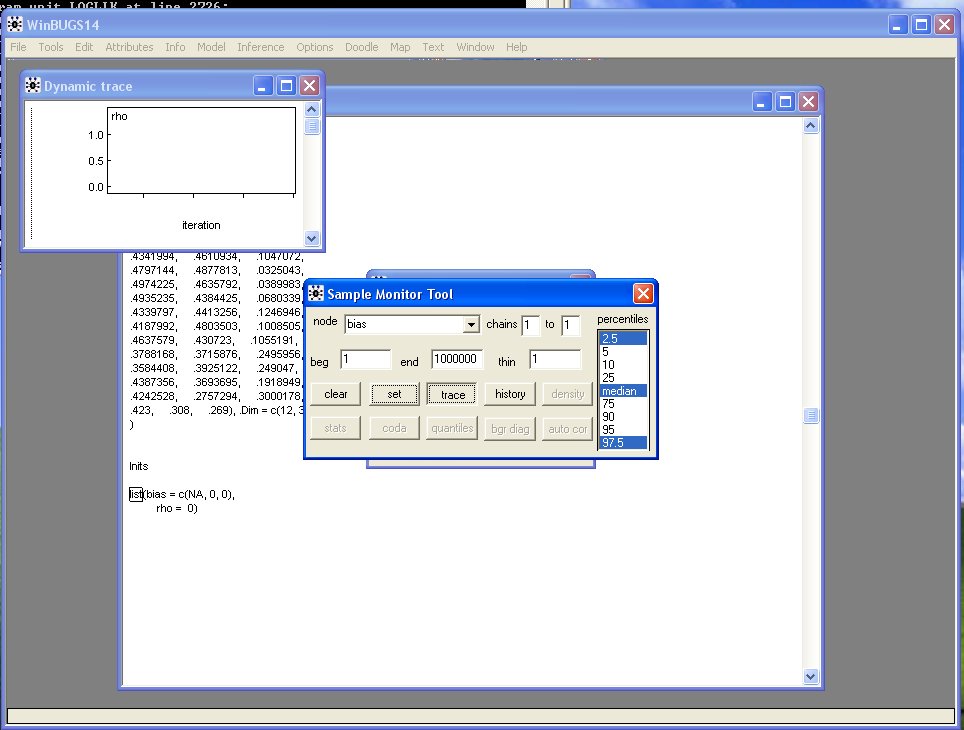
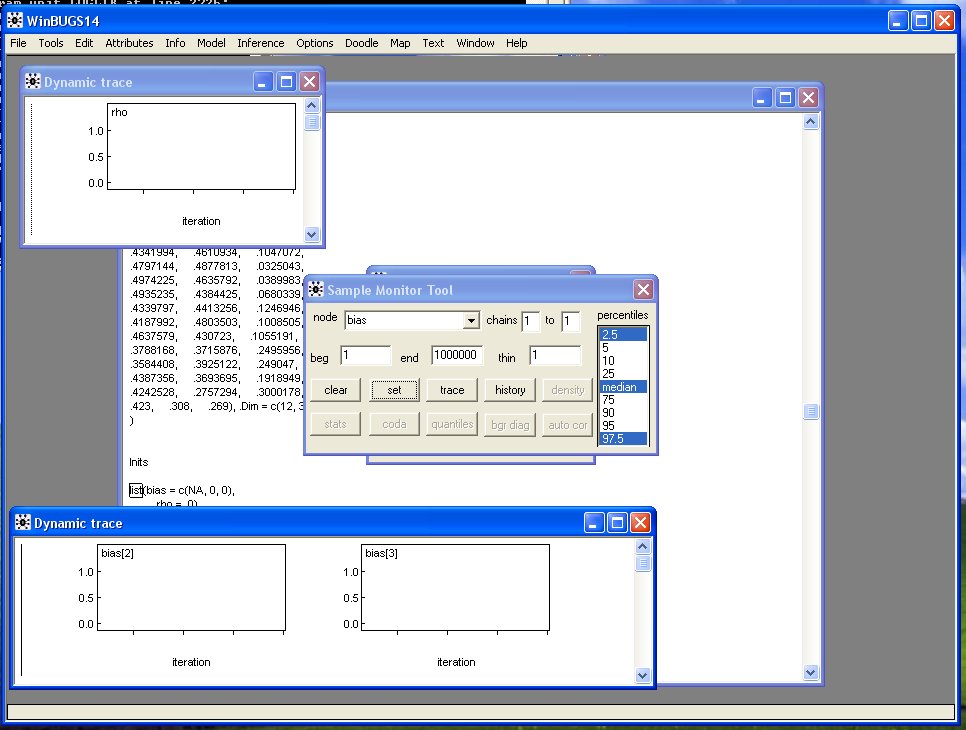
- Select "bias" and click "trace" and it brings up a two panel window that will show the MCMC
iterations for the two bias variables.
- The Model is almost ready to run! Click the "model" drop-down box and select "Update":
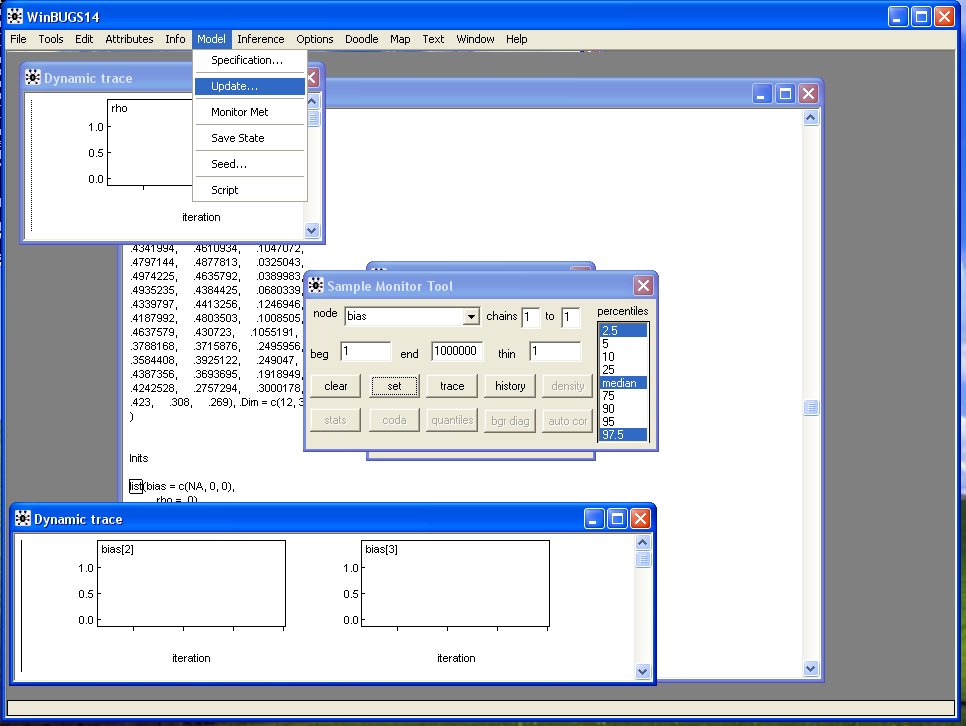
- This brings up the "Update Tool". Set the updates to 10000 (you can do more but 10000 is safe)
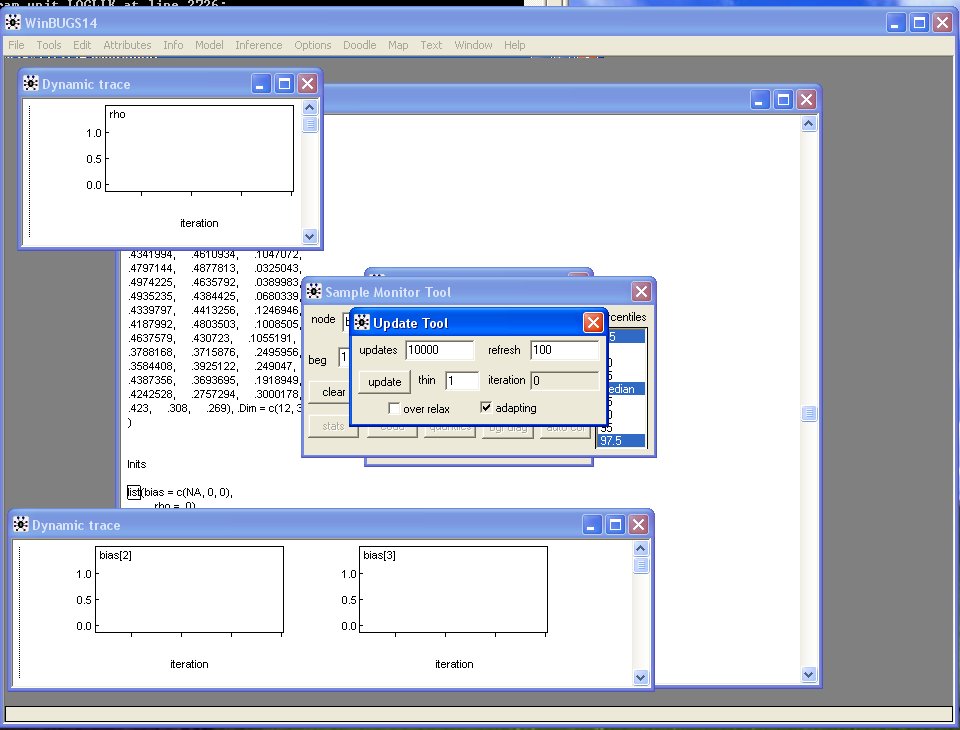
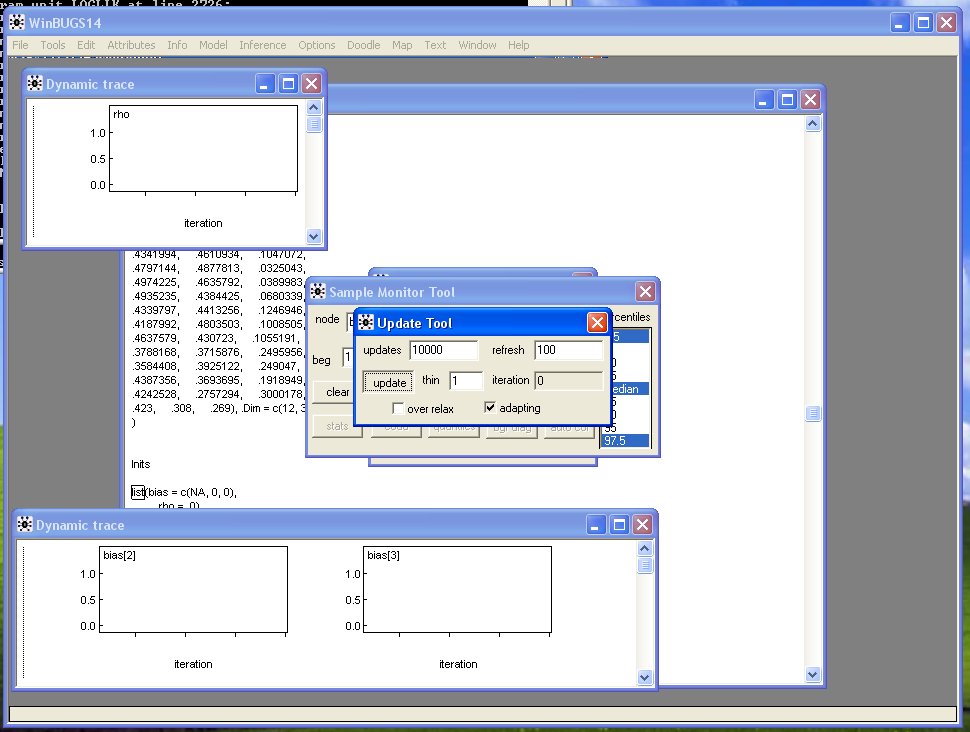
- and click "update" and the model runs!
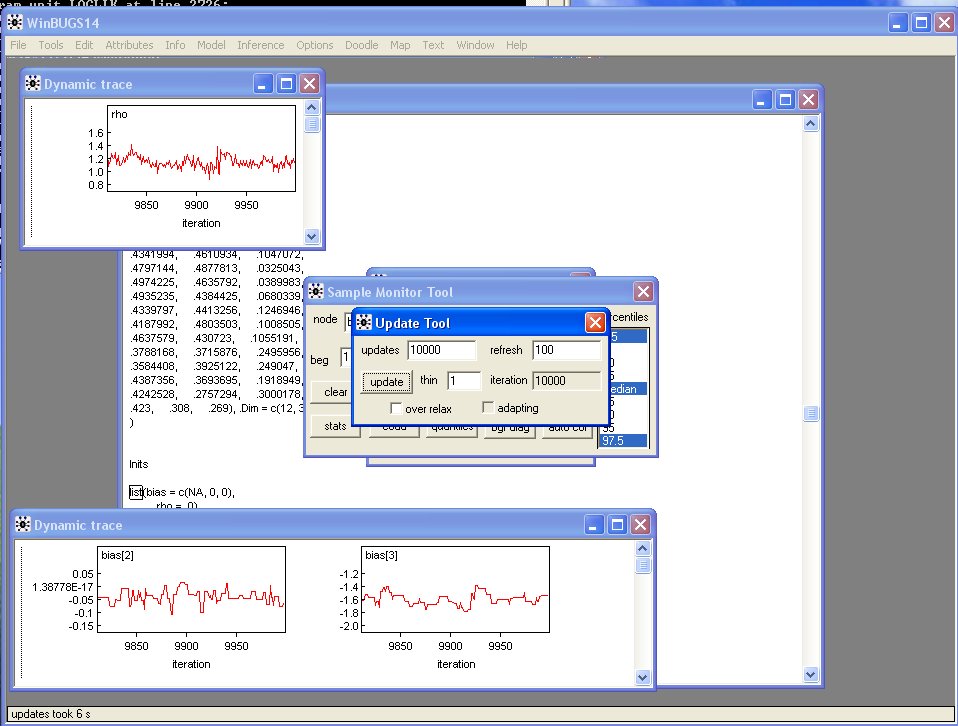
- Note the appearance of "10000" in the gray "iteration" box and the red tracelines in the parameter
windows.
- Bring the "Sample Monitoring Tool" back to the foreground (its been there the whole time) and
click "stats":
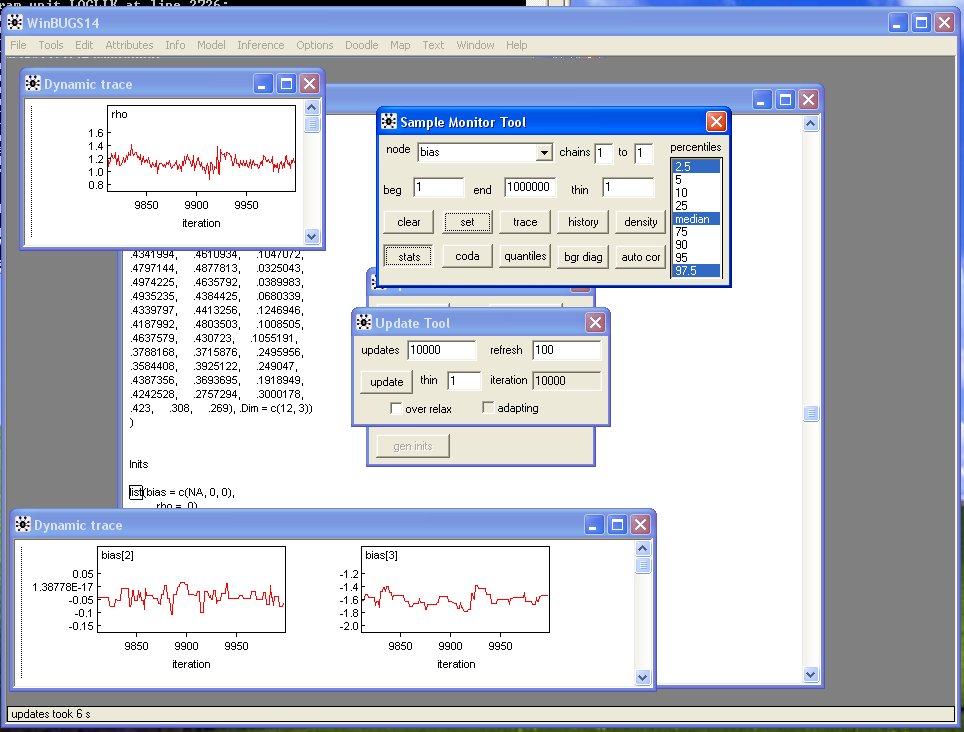
- This brings up the usual descriptive statistics (with a Bayesian twist!) for the two "bias"
parameters.
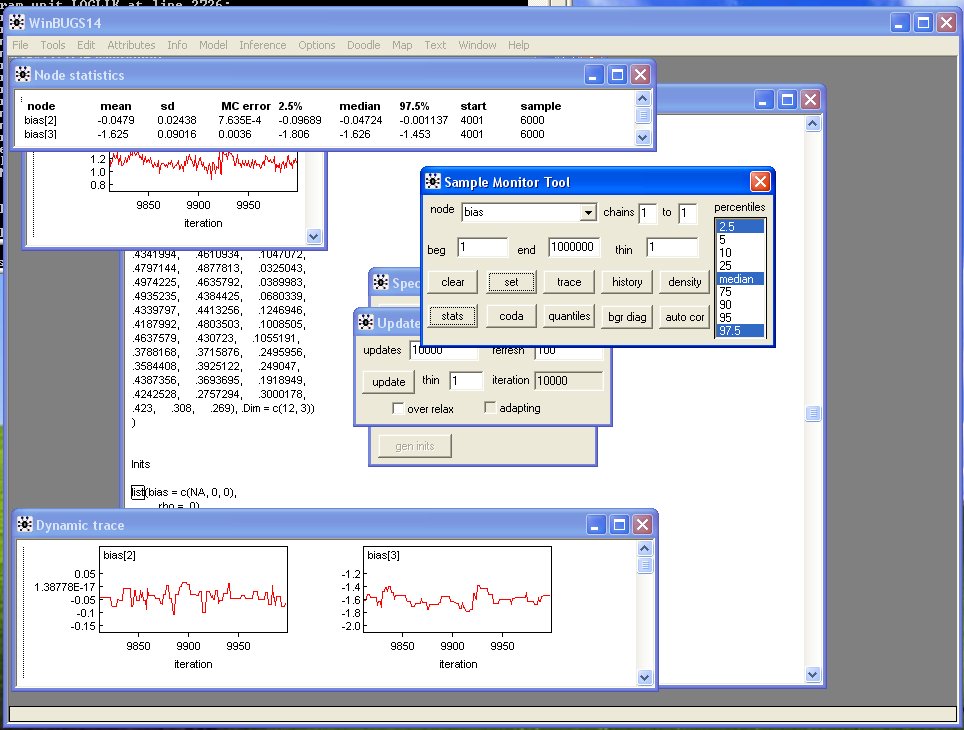
- Select "rho" in the "Sample Monitoring Tool" and click "stats":
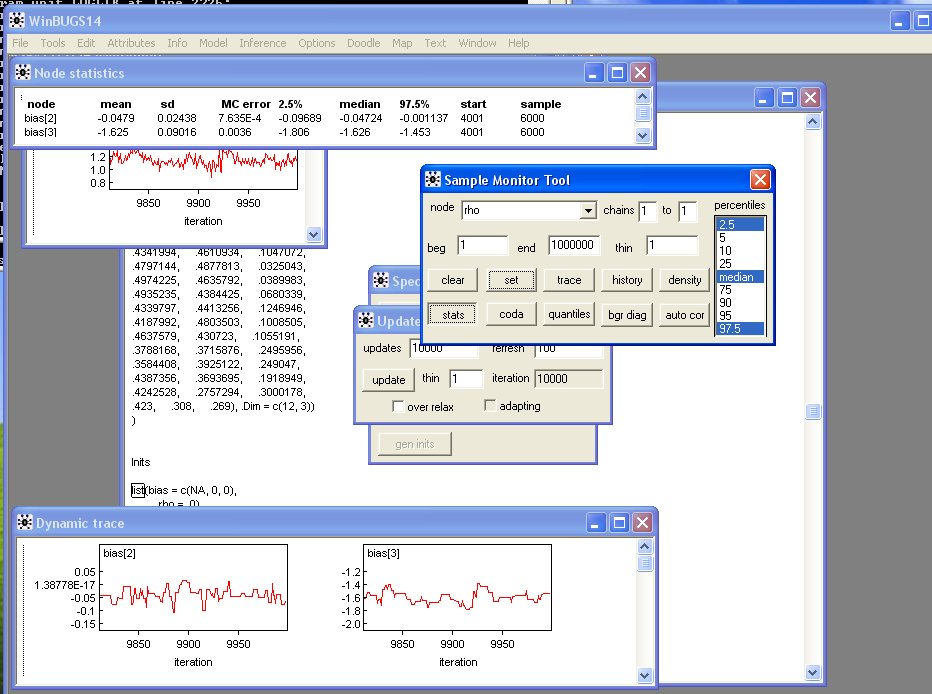
- and you get the usual descriptive statistics (with a Bayesian twist!) for the rho
parameter. Note that this window popped up over the bias statistics window. You can
move these around any way you want.
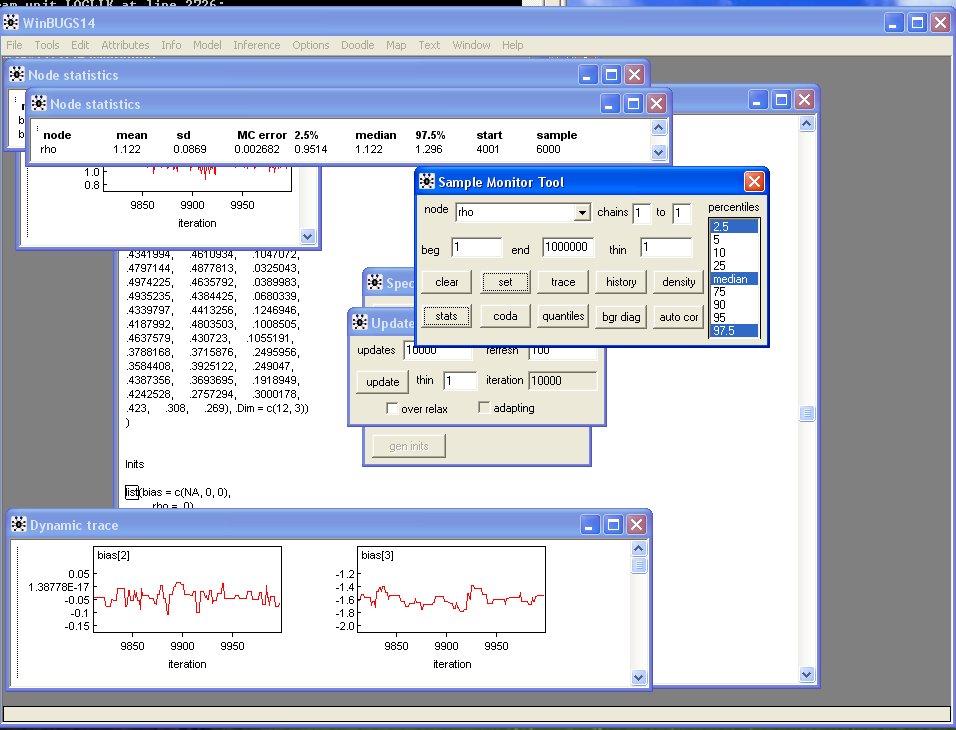
- Here is everything rearranged so you can see it.
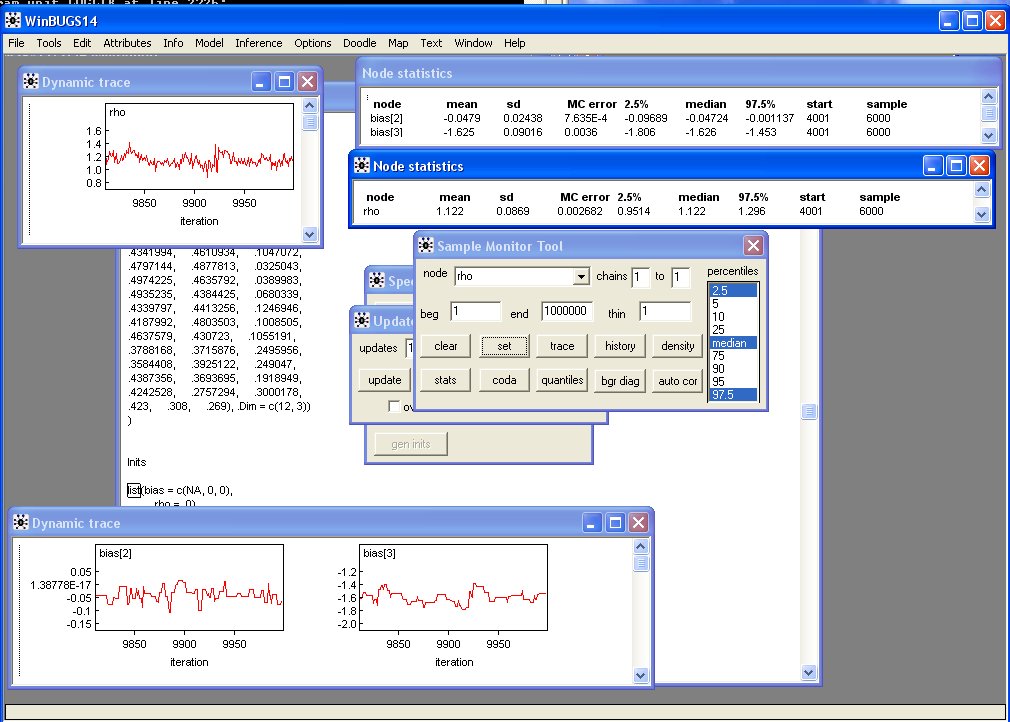
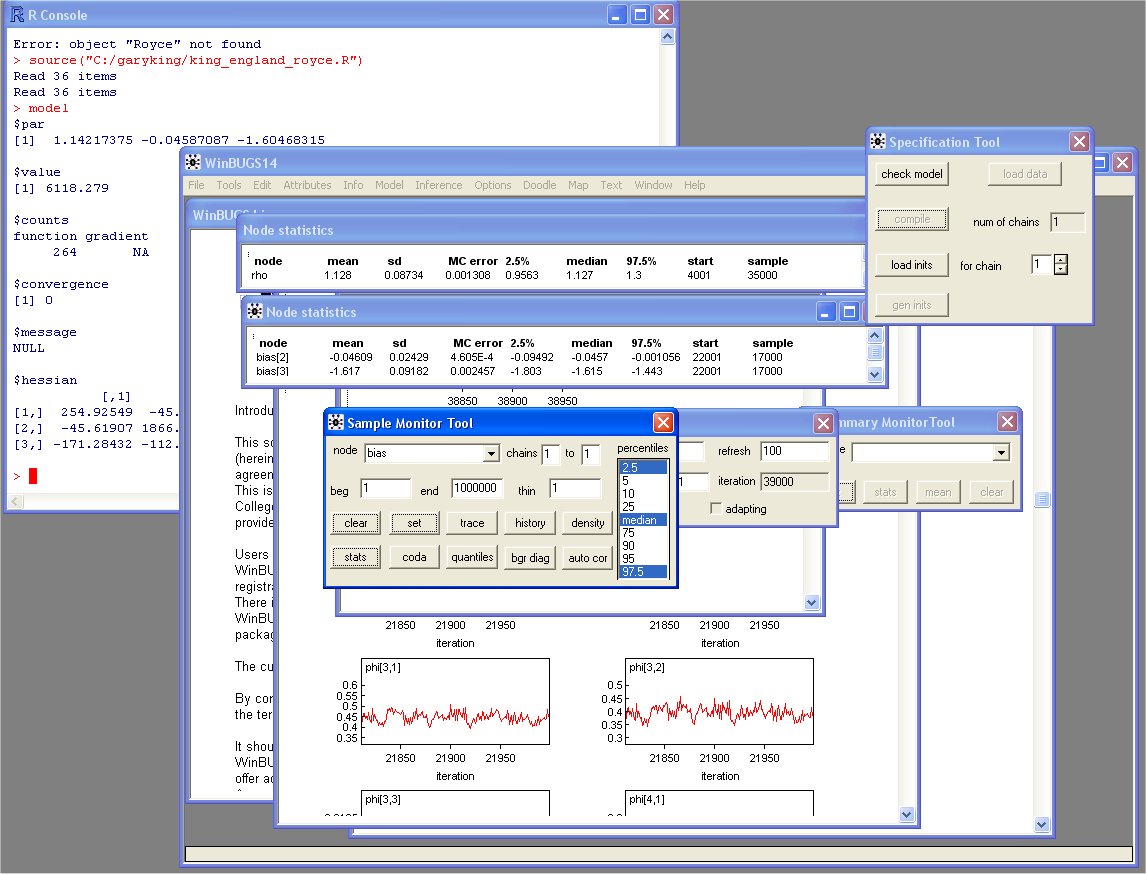
- In this final screen shot the results of classical Maximum-Likelihood run in
R can be seen in the background with the final results
from the Bayesian posterior. The two are essentially the same.