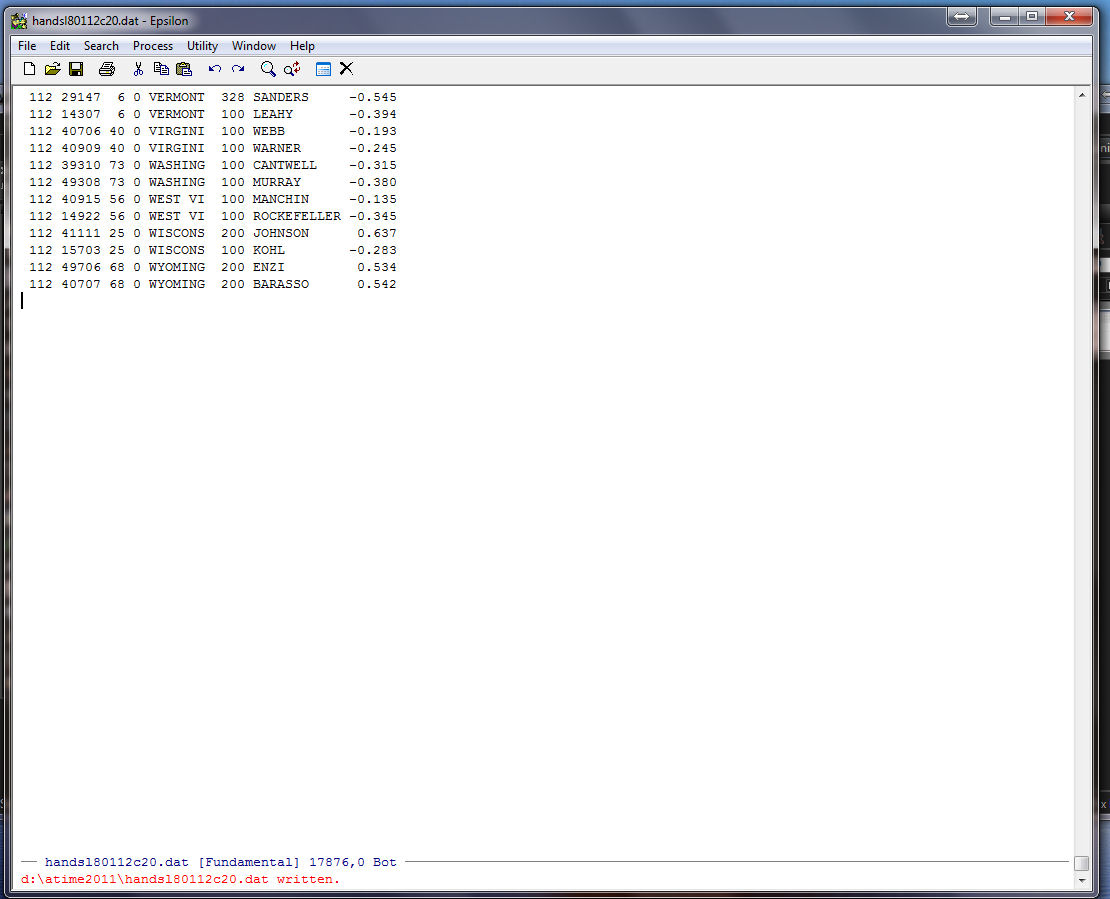
The aim of this keyboard macro is to cut a rectangle out of one file and save it in another file. This is particularly handy in a wide variety of problems. Download the coordinate file below:
HANDSL01112C20.DAT -- Raw Output File Joint House-Senate DW-NOMINATE
This is the raw legislator output file from DW-NOMINATE. What we are going to do with the Rectangle commands in Epsilon is cut out a piece of the file and save it to another file.
Bring HANDSL01112C20.DAT up in Epsilon and you should see this:
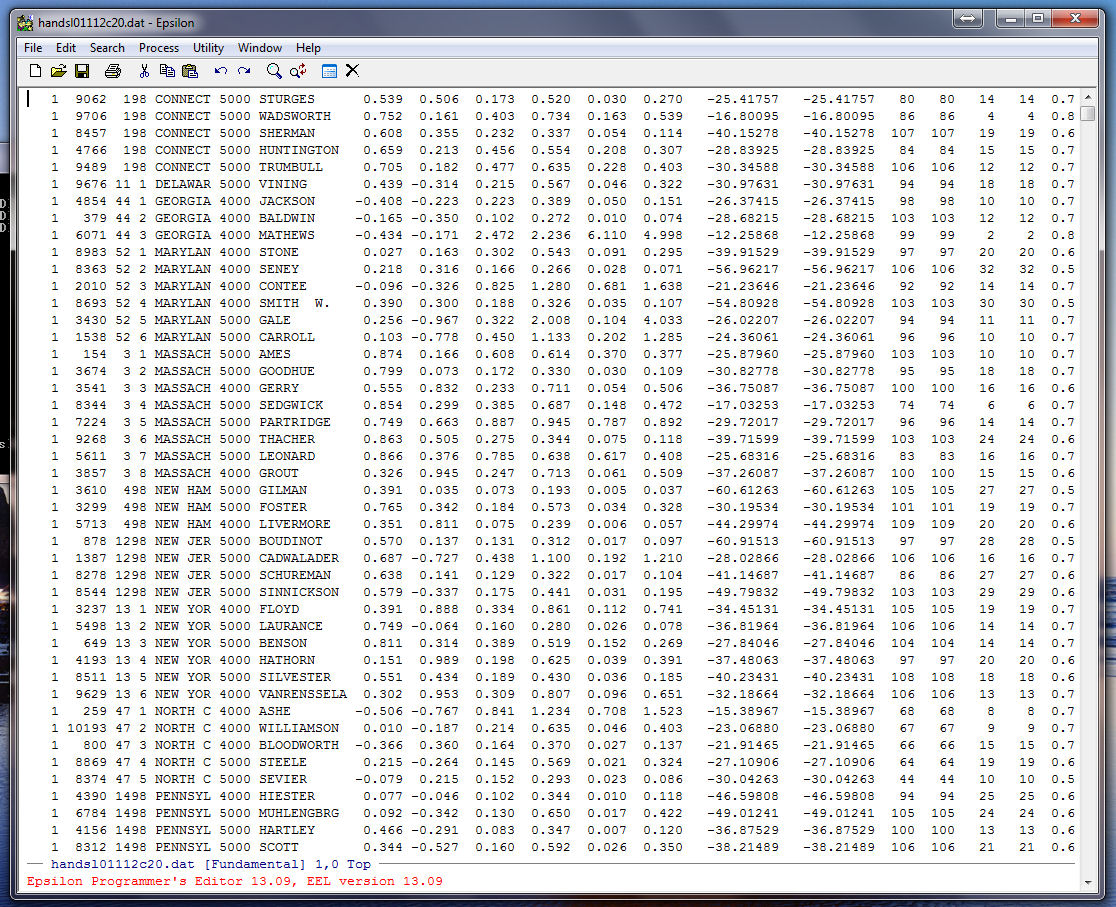
Suppose that all we are interested in are the first dimension coordinates for Congresses 80 through 112. That is, we just want the rectangle starting at the first legislator in the 80th Congress over to his/her first dimension coordinate and then down to the bottom of the file.
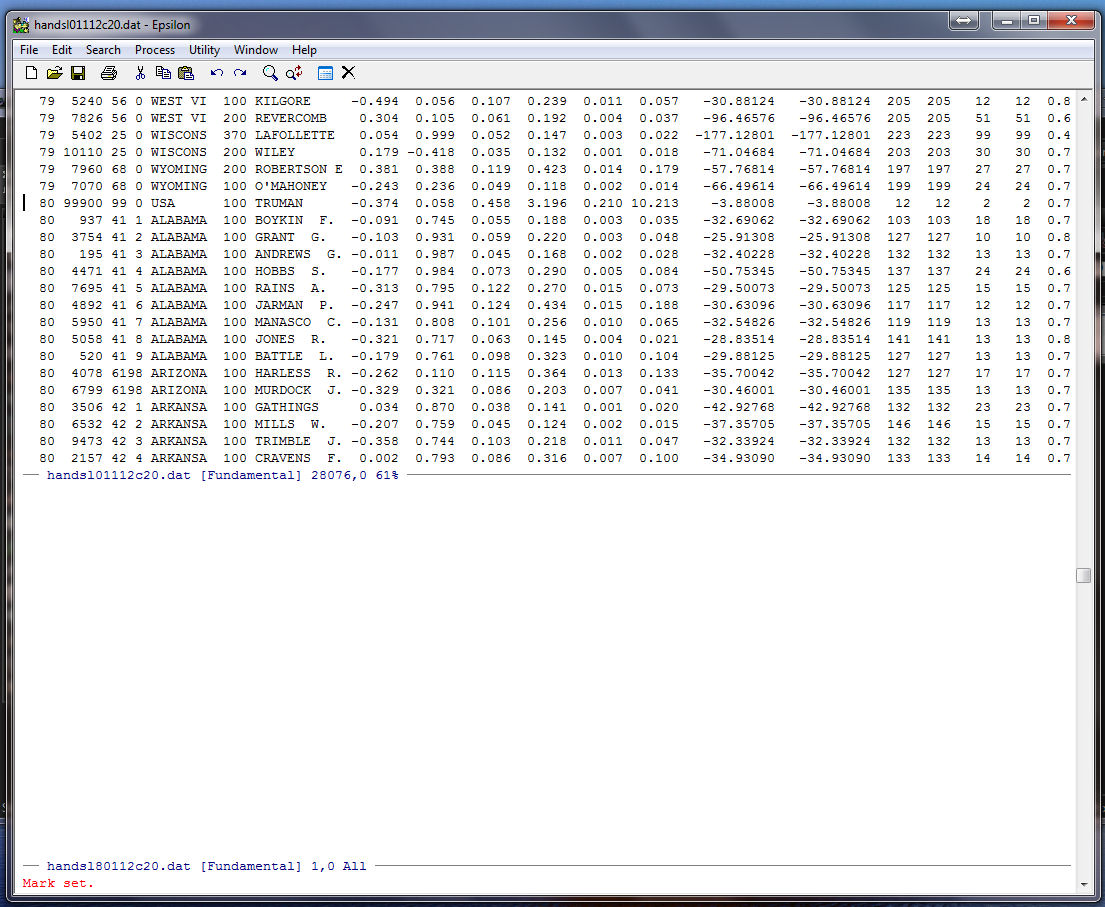
To start this, page down the file and place the cursor at the beginning of the first record for the 80th Congress:
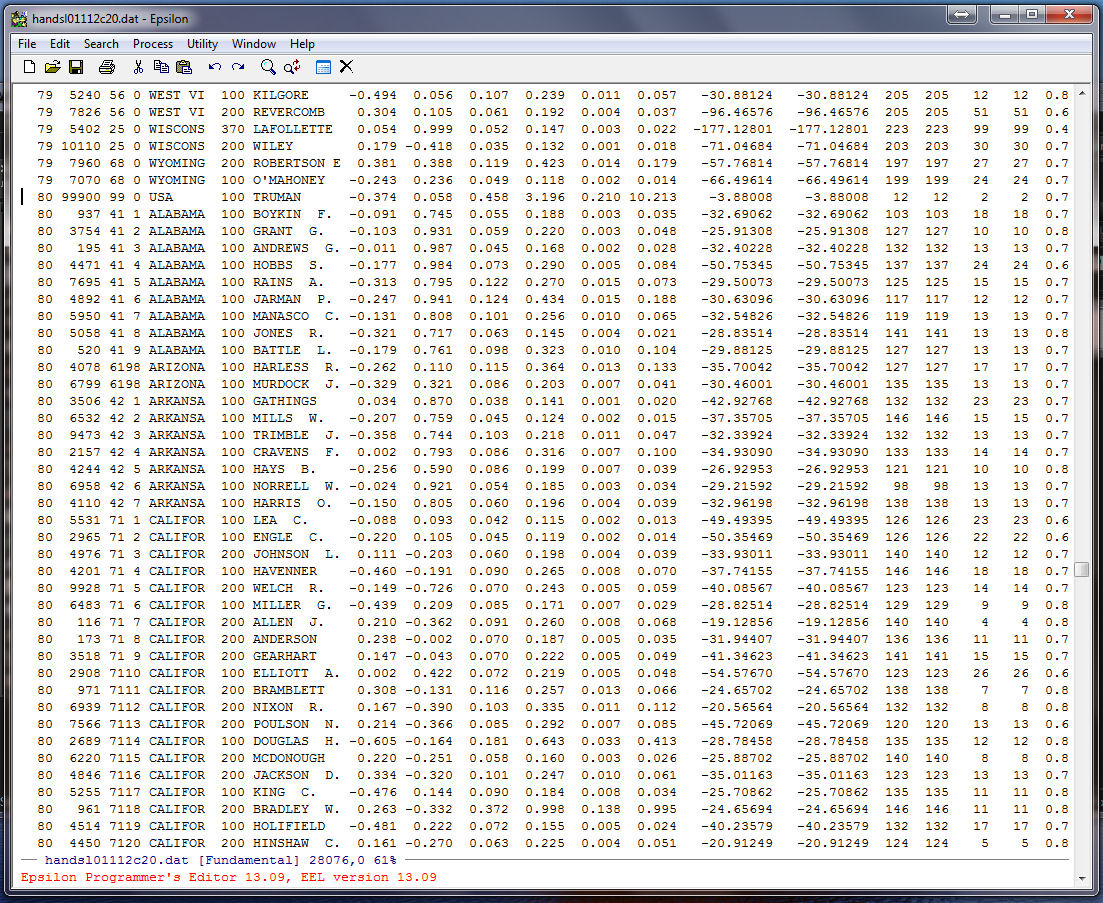
Now, Split the Window with C-X 2 and then create a blank file -- HANDSL80112C20.DAT -- with the Find File Command -- C-X C-F HANDSL80112C20.DAT. Go back to the upper window and it should look like this:
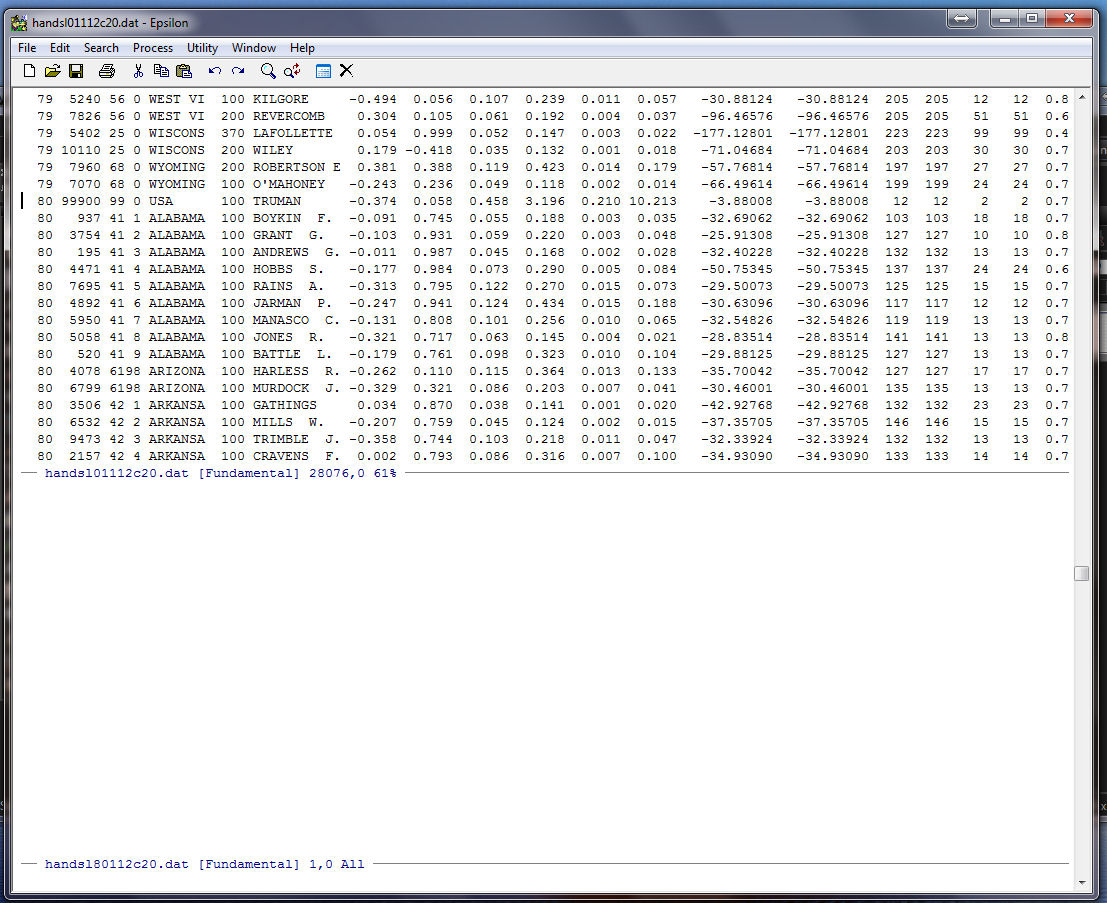
Now we set a special Mark Rectangle at the upper left position of the rectangle that we are cutting out -- C-X #. Note that this is at the beginning of the first record for the 80th Congress:
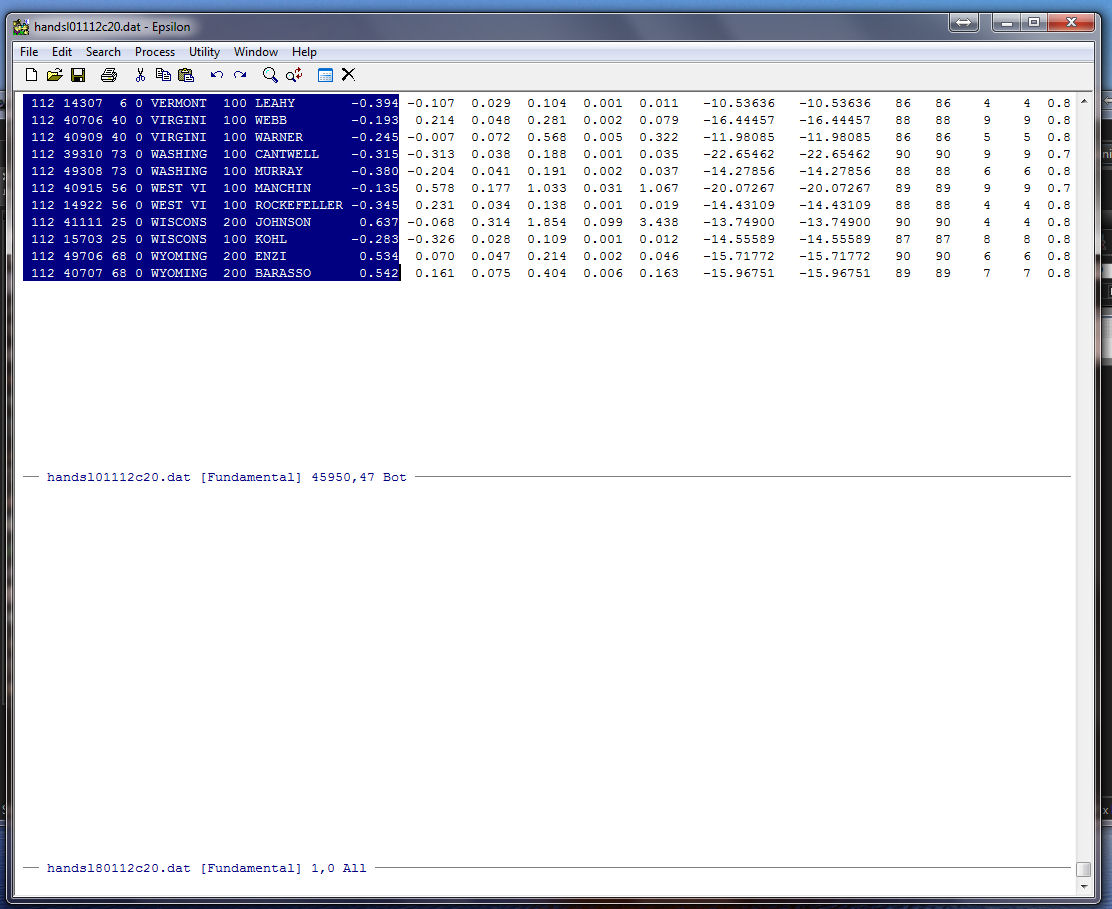
Now, go to the end of the file using ALT-> (remember that the ESC key is the same as ALT). Move the cursor to the right using the RIGHT arrow key and highlighting appears. Go over to the end of the column for the first dimension coordinate and it should look like this:
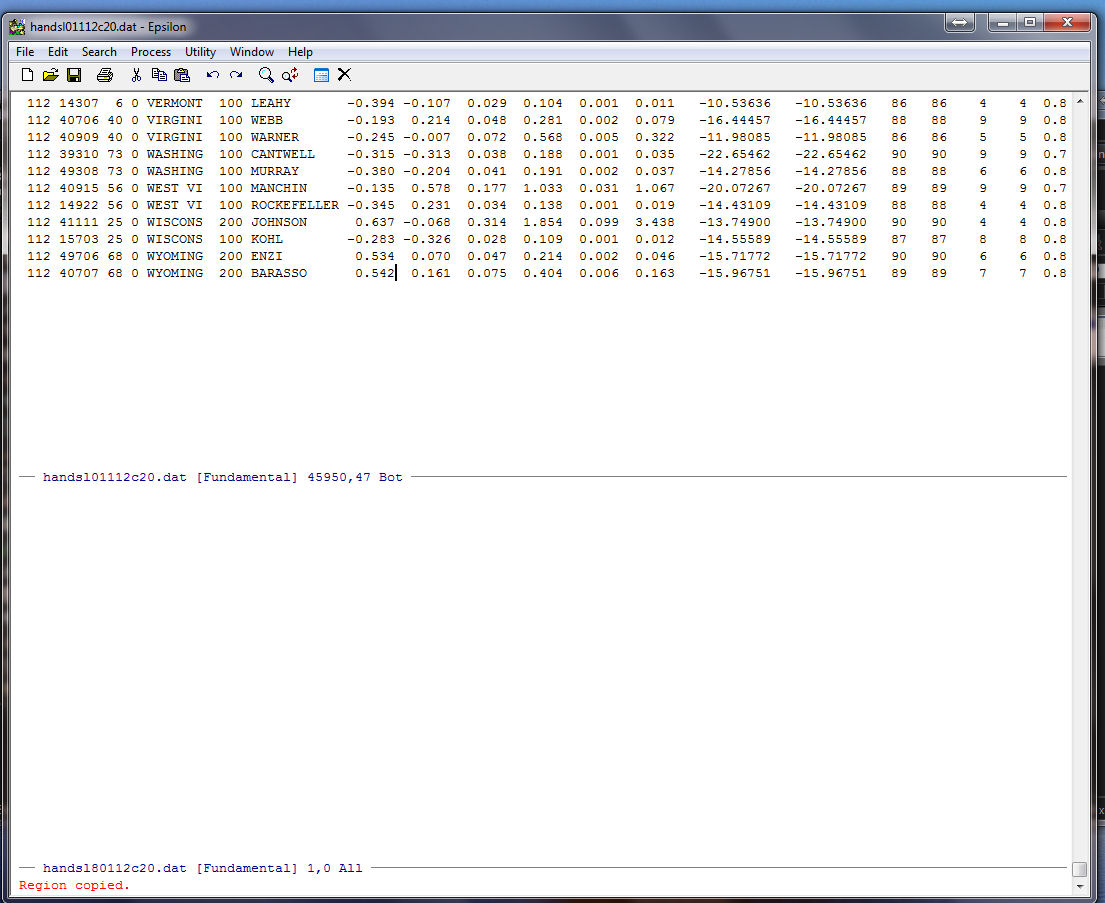
Now, copy the highlighted rectangle using ALT-W . Note the appearance of Region copied at the bottom of the Epsilon window. Also note that there is no "*" in the upper window!
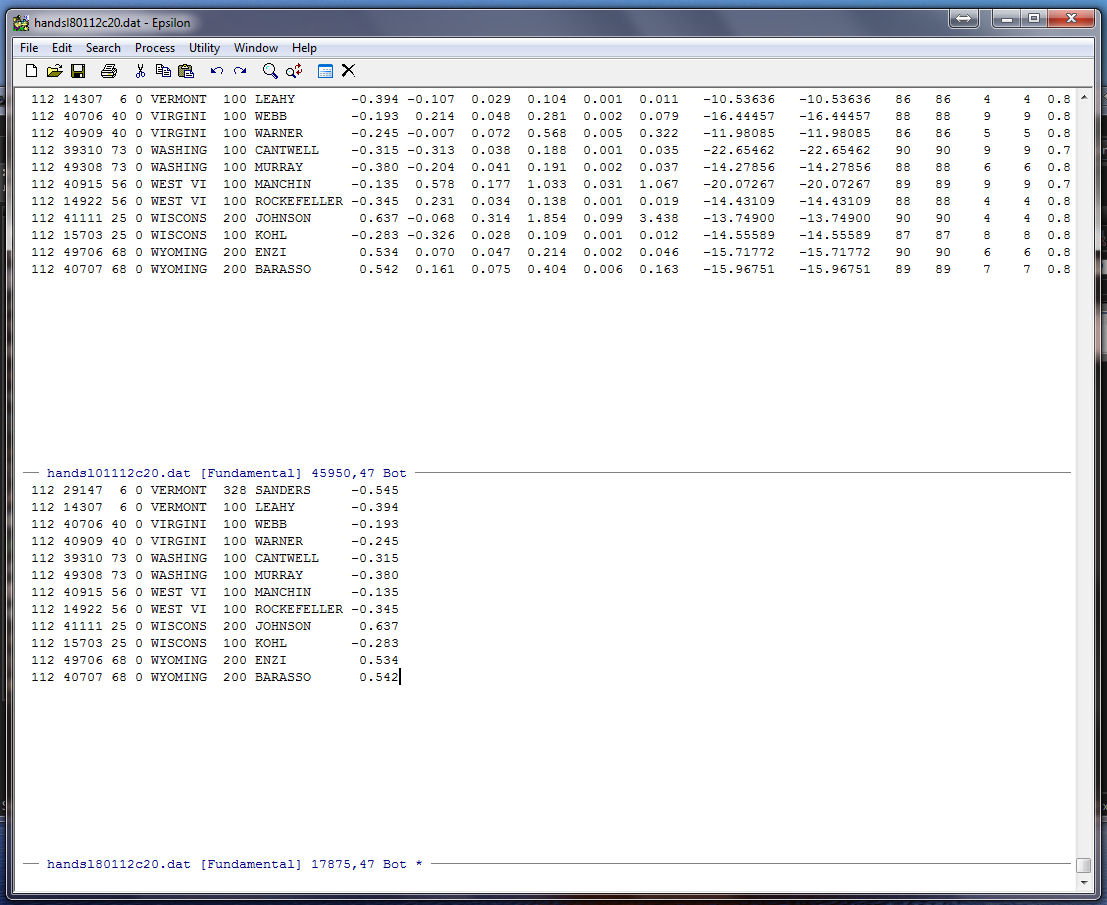
Go down to HANDSL80112C20.DAT with C-X DOWN, and yank the Rectangle from the Buffer with C-Y and you will see:
Close the upper window with C-X 0, hit the Enter key, and Save HANDSL80112C20.DAT with C-X C-S.